 START A BIT
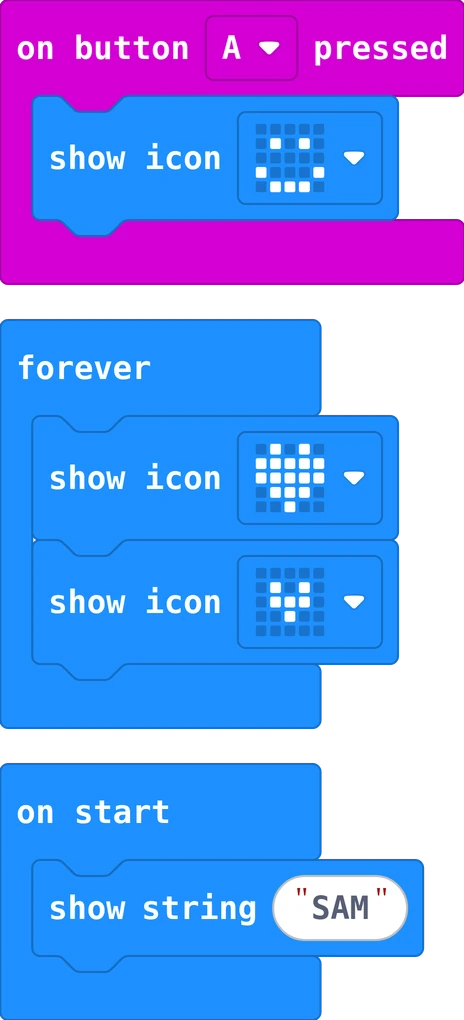
Blocks: when does my program run?
The outer block decides when the blocks inside run: on start once, forever again and again, on button A pressed each time it happens.
Inside a block, the steps run from top to bottom, one after the other.
Blocks inside on start run once, when the Micro:bit switches on. Then they are done.
Blocks inside forever run from top to bottom, then start again at the top. Round after round.
on button A pressed waits. Each time you press A, its blocks run once. That is an event.
Inside a block, the steps run one after the other, from the top. Change the order, and the screen changes too.
on start runs first. Then forever goes round. Press A: its blocks run in between.
pause waits before the next step. 500 ms is half a second. Without a pause, it blinks too fast to see.
Every language has them: once at the start, again and again, and when something happens. C++ calls them setup and loop.
Press A three times quickly: the presses wait in a line. Each one runs its blocks, one after the other.
Arduino C++ has no button event. loop asks every round: is it pressed now? A long delay can miss a quick tap.
More: tips for your first program video
- A block must click in. A grey, loose block does nothing: drag it until it snaps into place.
- Find blocks by colour. Basic (blue) shows things, Input (pink) has the buttons and shake, Music (red) plays sounds.
- Try it first on the screen. The simulator on the left runs your program: click A and B there.
- Undo with the arrow at the bottom, or press Ctrl and Z.
- Text in quotes. Click in the white field of show string and type your own words.
| Blocks | Python (Micro:bit) | C++ (Arduino) | |
|---|---|---|---|
| once | on start | the lines at the top | void setup() { } |
| again and again | forever | basic.forever(on_forever) | void loop() { } |
| when it happens | on button A pressed | input.on_button_pressed(Button.A, …) | if (digitalRead(2) == LOW) inside loop() |