Micro:bitArduinoMakeCodePythonC++ExplorersBuilders

Rainbow lightsaber

An LED strip where every light can have its own colour. Make a rainbow that moves, a light that races along, and a lightsaber blade that switches on and changes colour. On the Micro:bit or the Arduino.

QR code to this pageScan to open

1See it in action

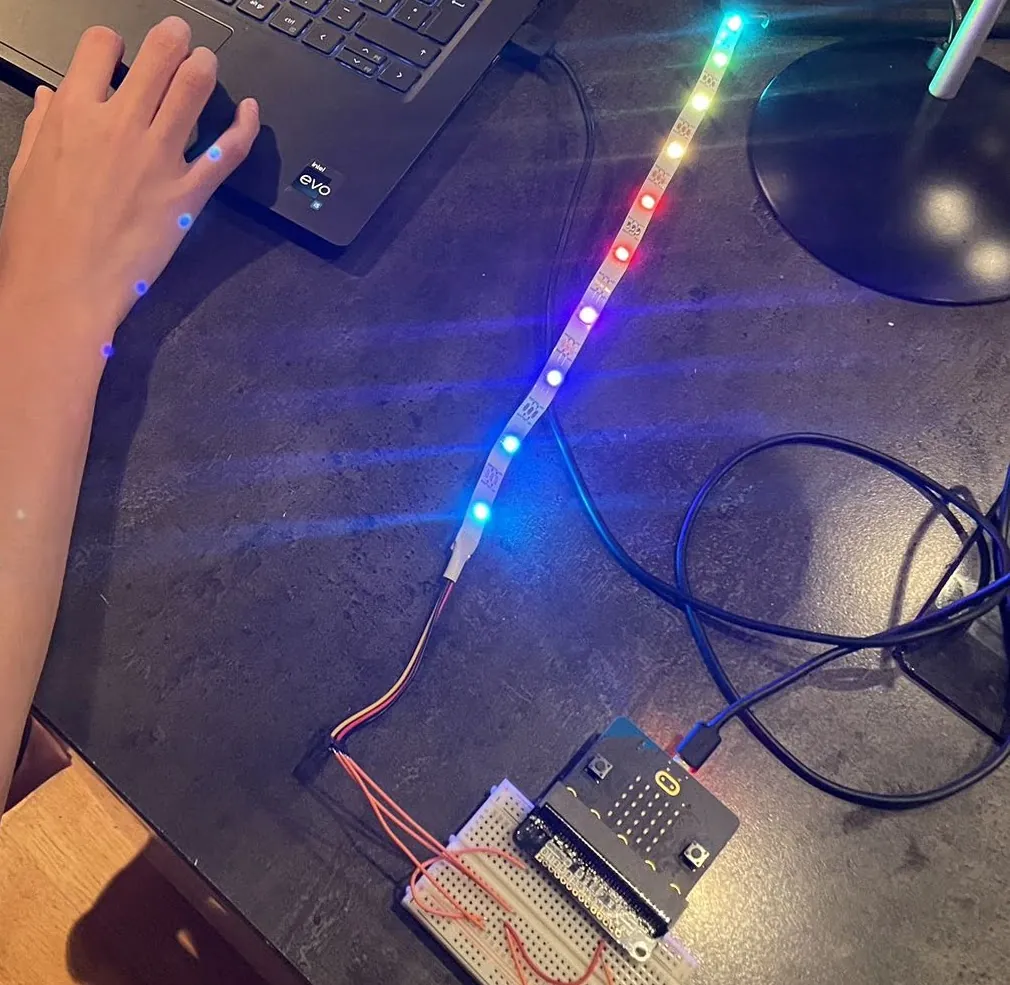
A glowing LED strip connected to a Micro:bit on a breadboard
The LED strip glowing built in class
On screen: the blade lights up LED by LED from the handle, then goes back from the tip
Switch on the blade story 3, on screen

2Parts you need

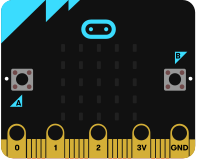
Micro:bit
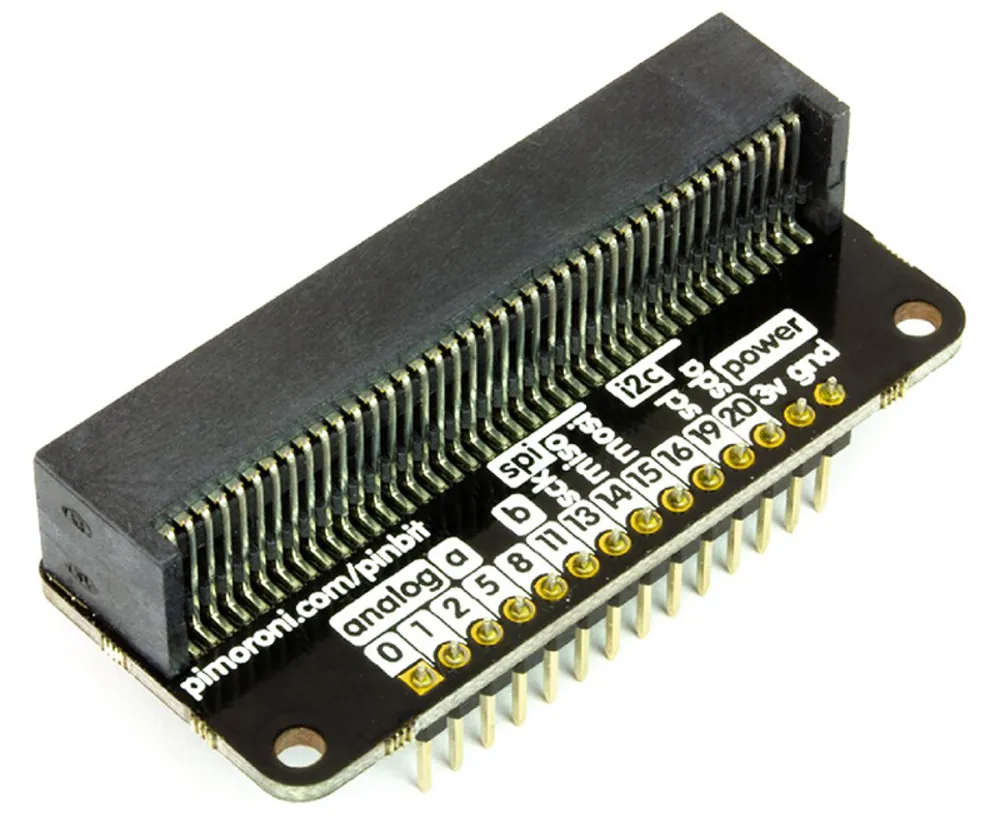
Breakout board (pin:bit)
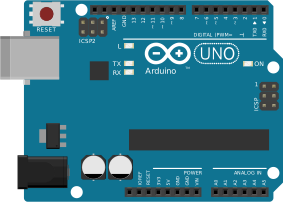
Arduino UNO
LED strip
Breadboard
2 push buttonsfrom story 3
Knob (potentiometer)from story 4

And jumper wires and a USB cable: your teacher hands them out. For story 4, a battery pack lets you swing the Micro:bit without a cable.

3Learn the basics

The ideas behind this project, each explained once for all projects. Open "More" to dig deeper.

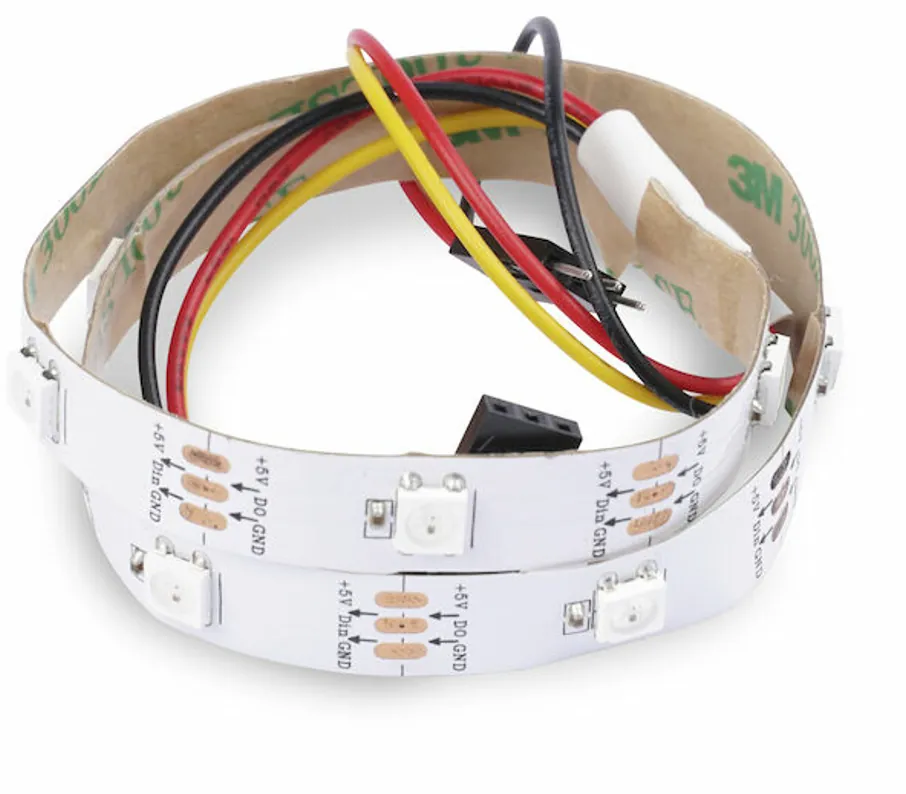
An LED strip with 10 LEDs glowing in rainbow colours, and its three wires: red, yellow and black

Addressable LEDs

Every LED on the strip has a tiny chip and a number, its address: 0 is next to the wires. One data wire tells each LED its own colour. Other names: NeoPixel, WS2812B, ZIP LEDs.

Three wires: red for +, yellow for the data (DIN), black for GND. The small arrows on the strip show the way the data travels: connect your board where they start.

Change the colours in the program, then show: nothing changes until the program sends them.

More: how the data travels, power, and the key blocks

One data wire for all LEDs

Not every LED strip works like this. In a simple strip all LEDs share the same wires, so they all show the same colour. In an addressable strip the board sends a long row of bits on the yellow wire: 24 bits for each LED, 8 for green, 8 for red and 8 for blue. 8 bits give a number from 0 to 255, so each LED can show 256 × 256 × 256, about 16.7 million colours.

The first chip keeps the first 24 bits and passes everything else on through DO. The second chip keeps the next 24 bits, and so on. So the position in the row is the LED's address, even with many strips plugged together. The bits travel at 800,000 per second: 10 LEDs get their colours in about 0.3 milliseconds.

Power

Each of the three colours takes about 20 mA at full brightness. One LED on white: 60 mA. One strip of 10 LEDs on white: 600 mA, and every extra strip adds 600 mA. The Micro:bit can give the strips roughly 200 mA, an Arduino on USB about 500 mA, so a brightness of 40 out of 255 is a good limit.

Brightness does not send less data: the program makes every colour number smaller before it sends it.

See the bits travel

Click Send the next 24 bits and watch which LED keeps which bits.

The key blocks and functions

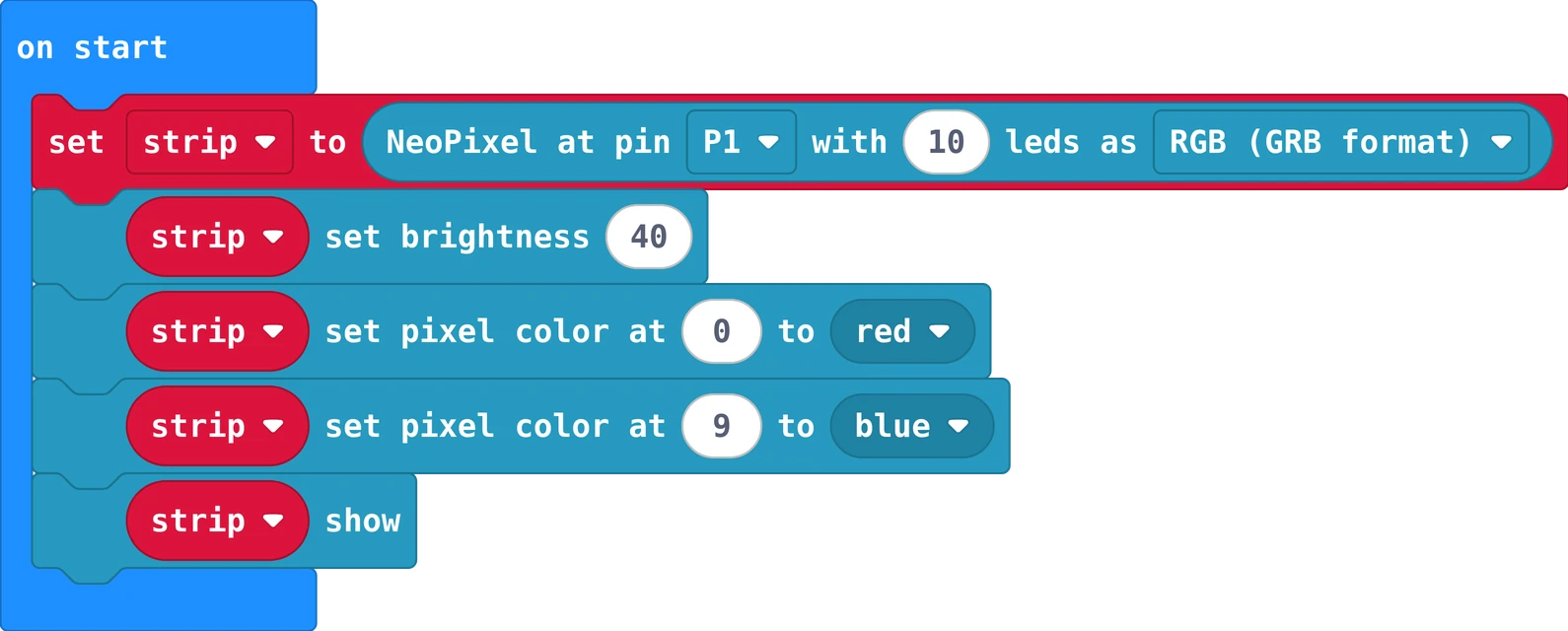
The MakeCode blocks of this program
The same in Python
strip = neopixel.create(DigitalPin.P1, 10, NeoPixelMode.RGB)
strip.set_brightness(40)
strip.set_pixel_color(0, neopixel.colors(NeoPixelColors.RED))
strip.set_pixel_color(9, neopixel.colors(NeoPixelColors.BLUE))
strip.show()

MakeCode: Extensions, search neopixel. LED 0 turns red and LED 9 blue.

#include <Adafruit_NeoPixel.h>
Adafruit_NeoPixel strip(10, 6, NEO_GRB + NEO_KHZ800);   // 10 LEDs on pin 6

void setup() {
  strip.begin();
  strip.setBrightness(40);
  strip.setPixelColor(0, strip.Color(255, 0, 0));       // LED 0: red
  strip.setPixelColor(9, strip.Color(0, 0, 255));       // LED 9: blue
  strip.show();                                         // send the colours
}

void loop() {
}

Library: Adafruit NeoPixel (Tools, Manage Libraries).

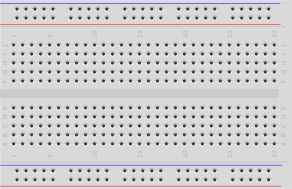
Breadboard

Push the legs of your parts into the holes: metal clips inside connect them, no soldering needed.

The five holes of one column are connected: a to e (yellow) and f to j (green). The middle gap separates the two halves. The long rails along the edges are connected along their whole row: + (red) and − (blue).

Two legs in the same column are connected. Two legs in the same row are not.

More: using the rails

Put a wire from GND to the − rail: now every part can reach GND from close by. The same for the + rail with 3V (Micro:bit) or 5V (Arduino). On some breadboards the rails are split in the middle: if a part at the far end does nothing, add a short wire to bridge the gap.

Columns are numbered 1 to 30 and rows are named a to j, so every hole has a name like e12. The wiring pictures on this website use these names.

An Arduino UNO

Arduino libraries

A library is ready-made code for a part, written and shared by someone else. It does the hard work, like sending the 24 bits per LED of an LED strip, so your program stays short.

Install it once, include it at the top, make an object, call its functions.

More: the four steps
  1. Install: in the Arduino IDE, Tools, Manage Libraries; search the name, click Install.
  2. Include: the first line of the sketch brings it in: #include <Adafruit_NeoPixel.h>
  3. Make an object: one for each part: Adafruit_NeoPixel strip(10, 6, NEO_GRB + NEO_KHZ800);
  4. Call its functions on the object: strip.begin(); strip.show();

Every library comes with examples: File, Examples, then the library's name. Opening one is the fastest way to see what its functions do.

Push button

The button has four legs. It sits across the middle gap: the two legs on the left side are always connected (purple column), and so are the two on the right (black column). Pressing the button connects the left side to the right side.

One side to a pin, the other side to GND. With pull up, the pin reads 1, and 0 while pressed.

More: pull up, and the program

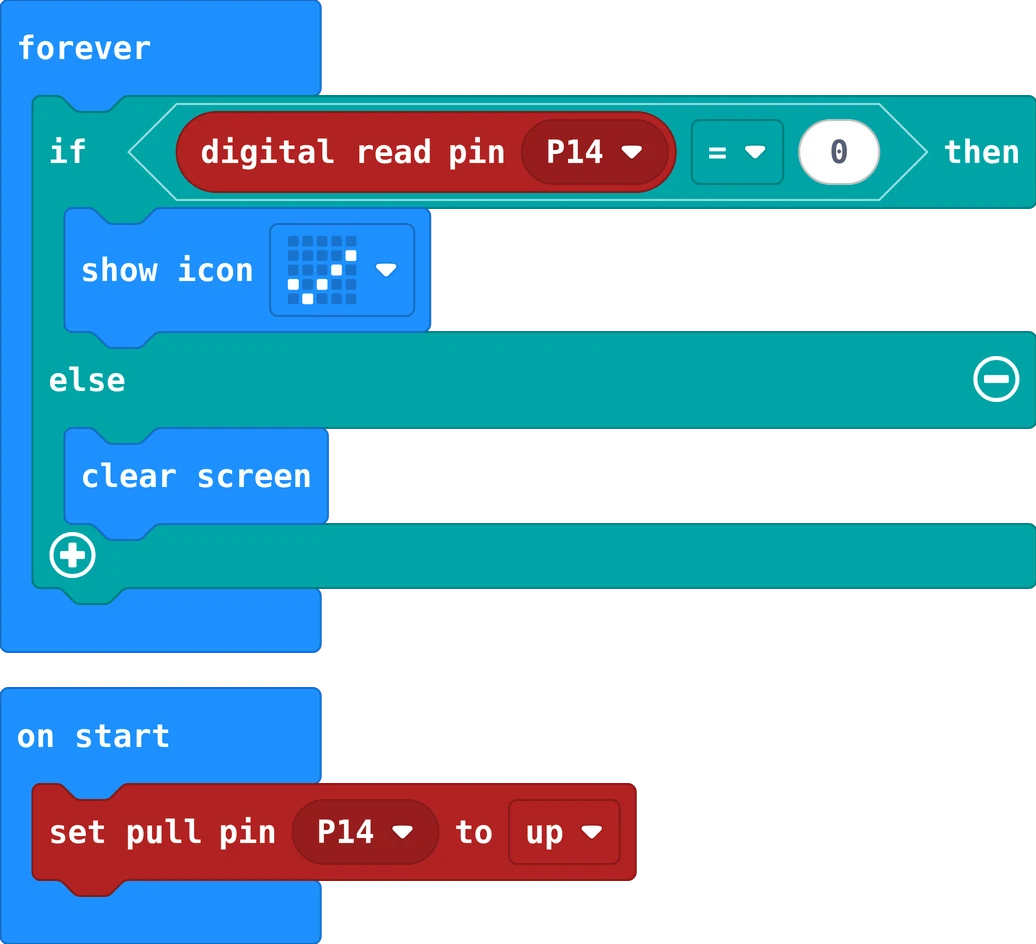
A pin connected to nothing reads random values. Pull up connects it inside the board to + through a big resistor: it reads 1 while the button is free. Pressing connects the pin to GND, and it reads 0. That is why the program checks for 0.

The MakeCode blocks of this program
The same in Python
pins.set_pull(DigitalPin.P14, PinPullMode.PULL_UP)

def on_forever():
    if pins.digital_read_pin(DigitalPin.P14) == 0:
        basic.show_icon(IconNames.YES)
    else:
        basic.clear_screen()
basic.forever(on_forever)
void setup() {
  pinMode(7, INPUT_PULLUP);           // 1 (HIGH) when free, 0 (LOW) when pressed
  pinMode(LED_BUILTIN, OUTPUT);
}

void loop() {
  if (digitalRead(7) == LOW) {
    digitalWrite(LED_BUILTIN, HIGH);  // pressed: the board's own LED lights
  } else {
    digitalWrite(LED_BUILTIN, LOW);
  }
}
A blue knob, a potentiometer, with three legs: two on one side, the middle leg on the other

Knob (potentiometer)

A potentiometer has three legs. The two outer legs go to + and −; the middle leg gives a voltage between them, depending on where you turn the knob.

Middle leg to an analog pin: the program reads 0 (turned fully one way) to 1023 (fully the other way).

More: reading it, and map

An analog pin measures a voltage instead of only on and off. map turns the number 0 to 1023 into any range you need, for example 0 to 359 for a colour on the colour wheel, or 0 to 180 for a servo angle.

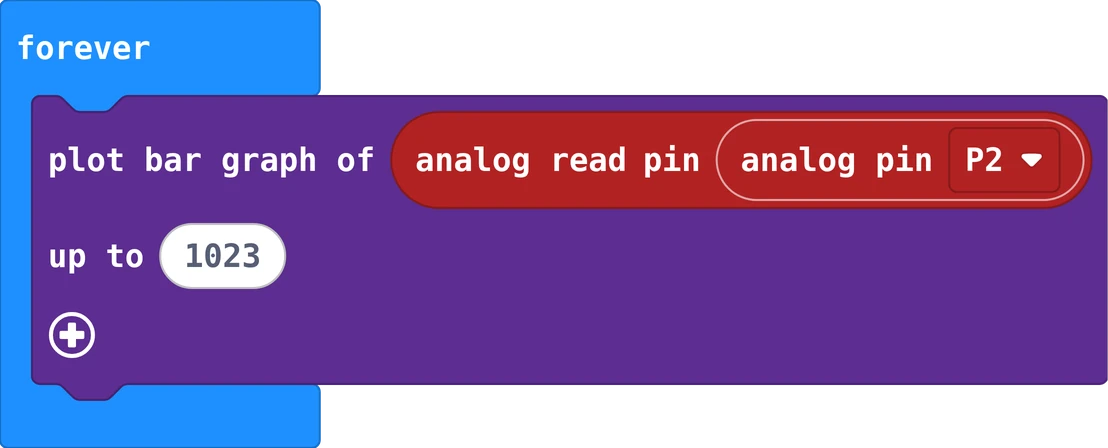
The MakeCode blocks of this program
The same in Python
def on_forever():
    led.plot_bar_graph(pins.analog_read_pin(AnalogPin.P2), 1023)
basic.forever(on_forever)

On the Micro:bit, pins 0, 1 and 2 can read analog values.

void setup() {
  Serial.begin(9600);
}

void loop() {
  int value = analogRead(A0);              // 0 to 1023
  int angle = map(value, 0, 1023, 0, 180); // into 0 to 180
  Serial.println(angle);                   // see it in the Serial Monitor
  delay(100);
}
The Micro:bit board

Motion sensor (accelerometer)

The Micro:bit has a small chip that feels movement and which way is down. It notices a shake, a tilt to the left or right, and the board lying face up or down.

Events like "on shake" for quick moves; "acceleration (mg)" for how far it is tilted.

More: the numbers

acceleration (mg) x is about 0 when the Micro:bit lies flat, and goes to about −1000 and +1000 when you tilt it fully left or right (mg means thousandths of the pull of the earth). strength adds all directions: a hard swing gives a big number.

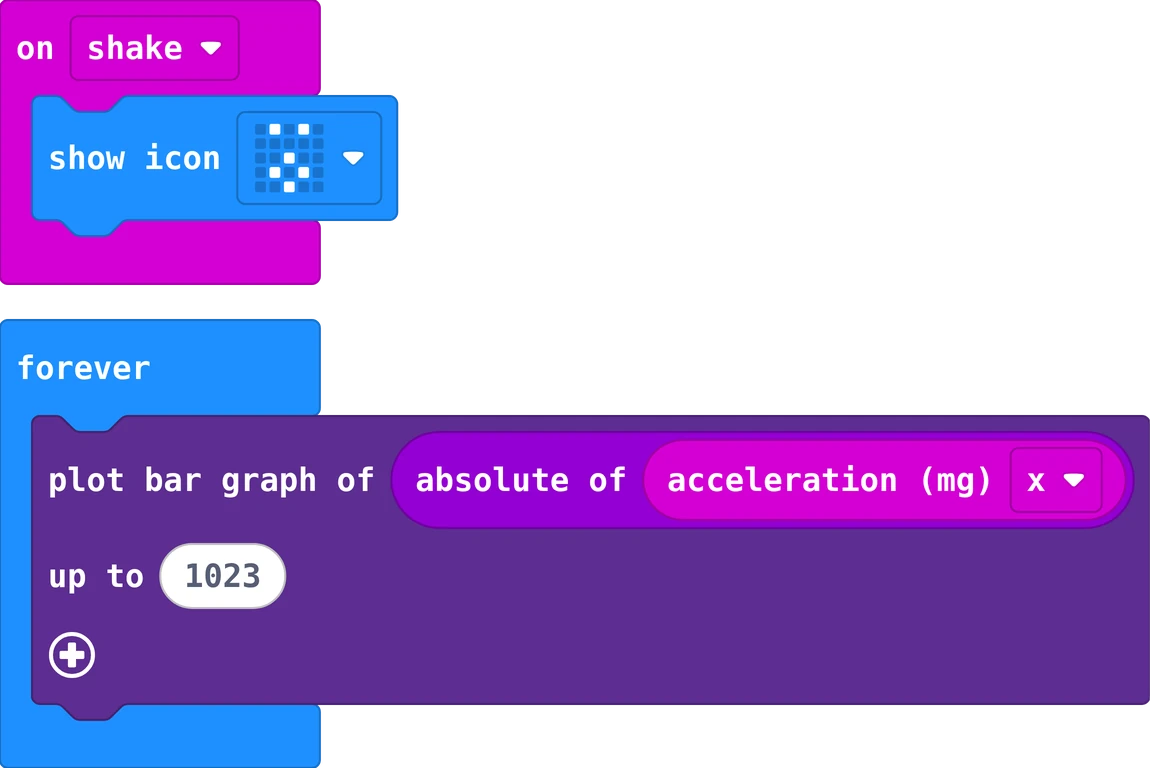
The MakeCode blocks of this program
The same in Python
def on_gesture_shake():
    basic.show_icon(IconNames.SURPRISED)
input.on_gesture(Gesture.SHAKE, on_gesture_shake)

def on_forever():
    led.plot_bar_graph(abs(input.acceleration(Dimension.X)), 1023)
basic.forever(on_forever)

4Wire it

The picture shows the wiring for your story. The new parts of a story have a dashed box.

Push the Micro:bit into the breakout board, and the breakout board into the breadboard. The pin names are printed on the board: find 1, 3v and gnd. We use pin 1 (P1 in MakeCode) for the data, because pin 0 also plays the music.

The two buttons sit across the middle gap, the knob sits across the gap too: its middle leg in row f, its two outer legs in row e. Stories 1 and 2 need only the strip.

5Try it

The LED strip lab works like the real strip, with three strips plugged together: 30 LEDs. Try the rainbow, the running light and the lightsaber, and move the brightness slider: watch how much power the strip needs.

Open the LED strip lab in a new tab

6Program it

You see the program for . Choose another story in the bar at the top of the page.

Open MakeCode, start a new project and add the extension: Extensions, search neopixel. Its blocks appear in the blue Neopixel drawer. Go as far as you like: every story works on its own.

Start the MakeCode tutorial all 4 stories, step by step

The Arduino needs a library for the LED strip: ready-made code that someone wrote and shared, so you do not have to send the 24 bits per LED yourself.

  1. In the Arduino IDE: Tools, Manage Libraries. Search Adafruit NeoPixel and click Install.
  2. The first line of the sketch brings the library in: #include <Adafruit_NeoPixel.h>
  3. Then you make a strip object: Adafruit_NeoPixel strip(10, 6, NEO_GRB + NEO_KHZ800); means 10 LEDs on pin 6, colours in the order green, red, blue.
  4. Now you call the library's functions on it: strip.begin(), strip.setBrightness(40), strip.setPixelColor(index, color), strip.show(), strip.clear(), strip.rainbow(hue).

Go as far as you like: every story works on its own.

Story 1: A moving rainbowfollow the code
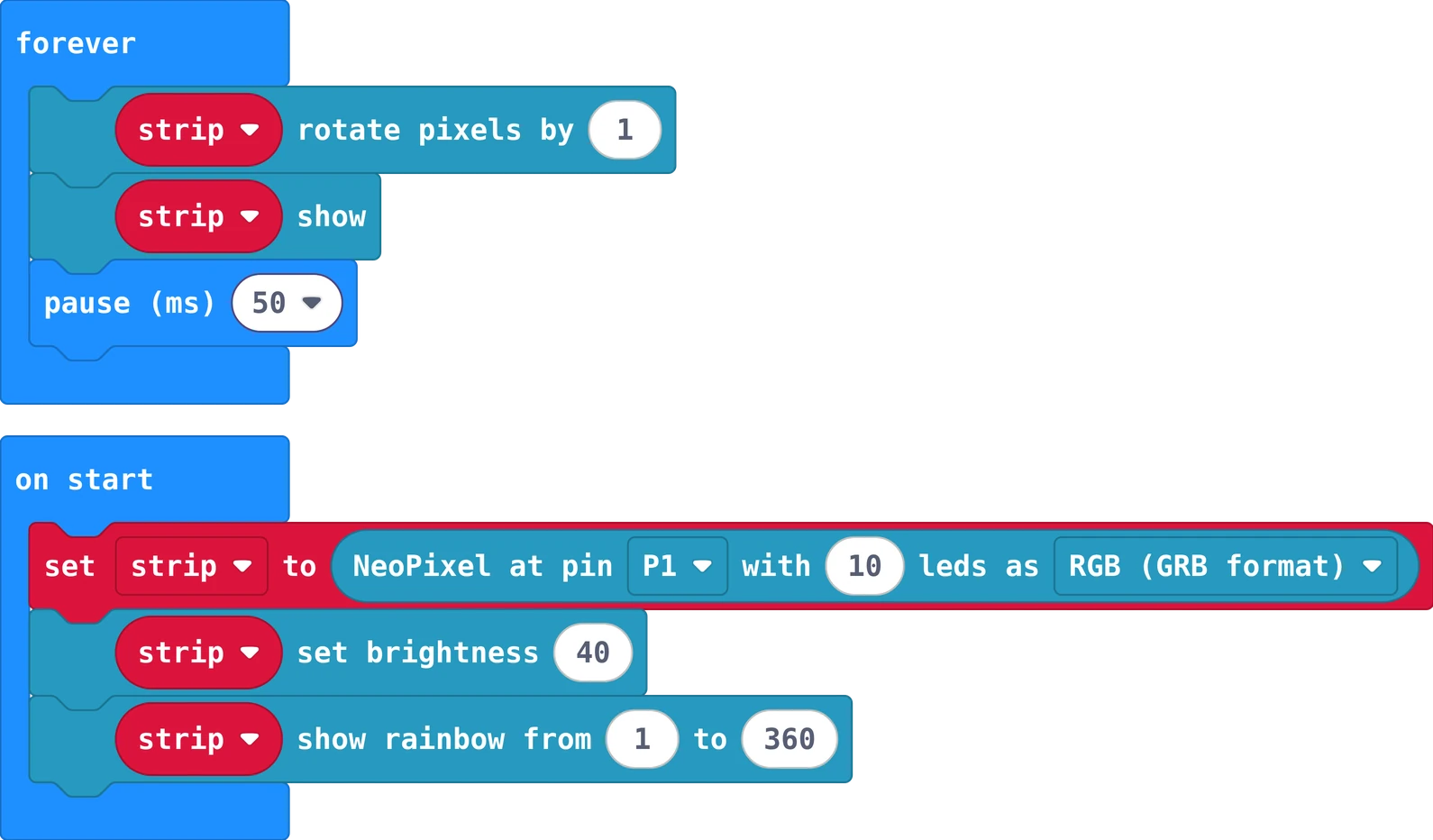
The MakeCode blocks of story 1
The same in Python
strip = neopixel.create(DigitalPin.P1, 10, NeoPixelMode.RGB)
strip.set_brightness(40)
strip.show_rainbow(1, 360)

def on_forever():
    strip.rotate(1)
    strip.show()
    basic.pause(50)
basic.forever(on_forever)

In MakeCode, switch from Blocks to Python at the top of the editor to type it yourself.

rotate moves every colour one LED along, and the last one comes back to the start. show sends the new colours to the strip: nothing changes until you show.

Your turn: make it run faster, slower, or the other way (rotate by -1). Rainbow from 1 to 120?

#include <Adafruit_NeoPixel.h>

const int stripPin = 6;
const int ledCount = 10;
Adafruit_NeoPixel strip(ledCount, stripPin, NEO_GRB + NEO_KHZ800);   // the strip object from the library

unsigned int firstHue = 0;   // where the rainbow starts on the colour wheel (0 to 65535)

void setup() {
  strip.begin();
  strip.setBrightness(40);   // of 255: keep it low
}

void loop() {
  strip.rainbow(firstHue);   // the whole colour wheel along the strip
  strip.show();              // send the colours to the strip
  firstHue += 512;           // move the rainbow a little
  delay(20);
}

rainbow paints the whole colour wheel along the strip, starting at firstHue. Adding 512 each time moves it a little. show sends the new colours to the strip: nothing changes until you show.

Your turn: make it run faster, slower, or the other way (firstHue -= 512).

Story 2: Chase the lighta loop
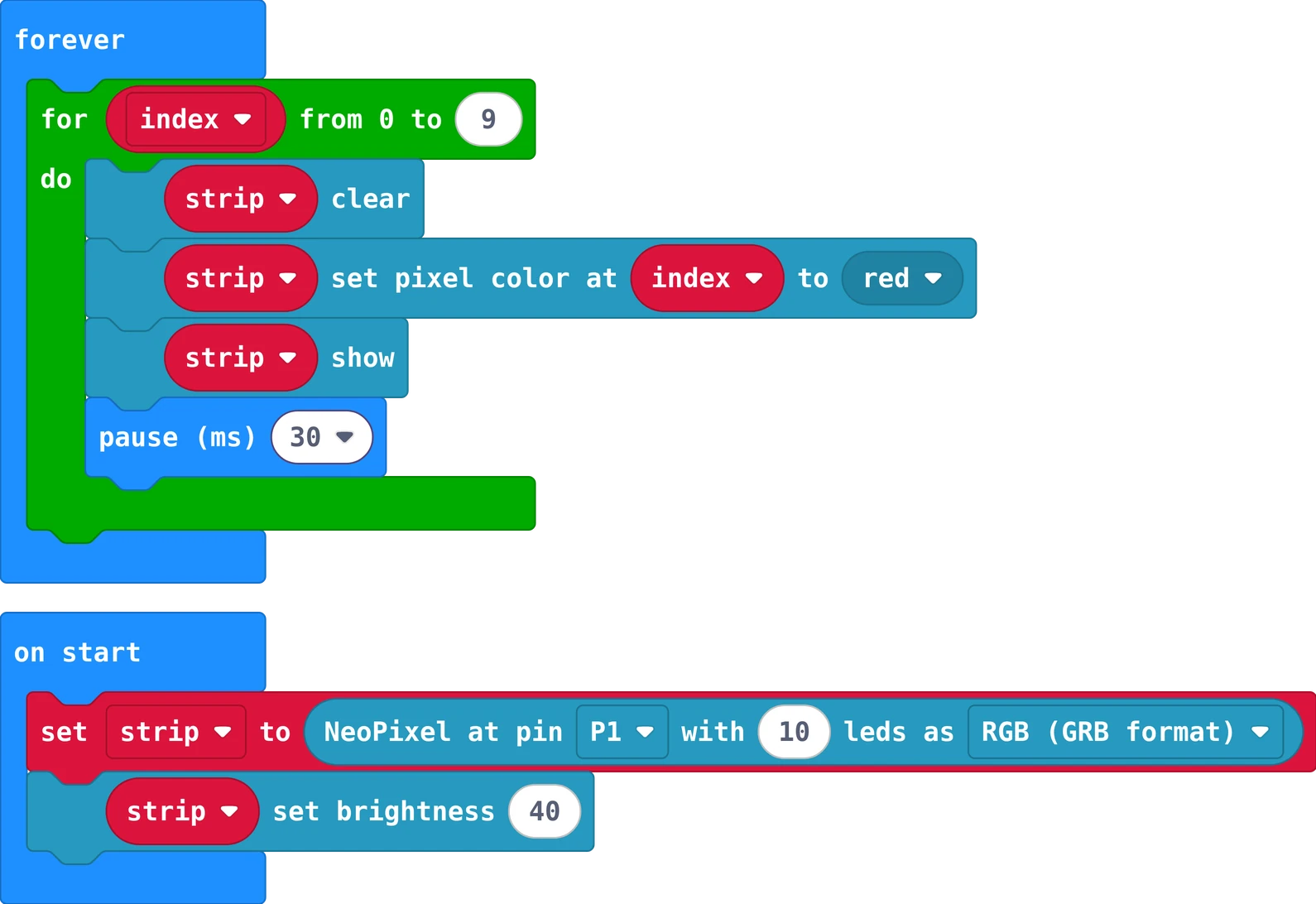
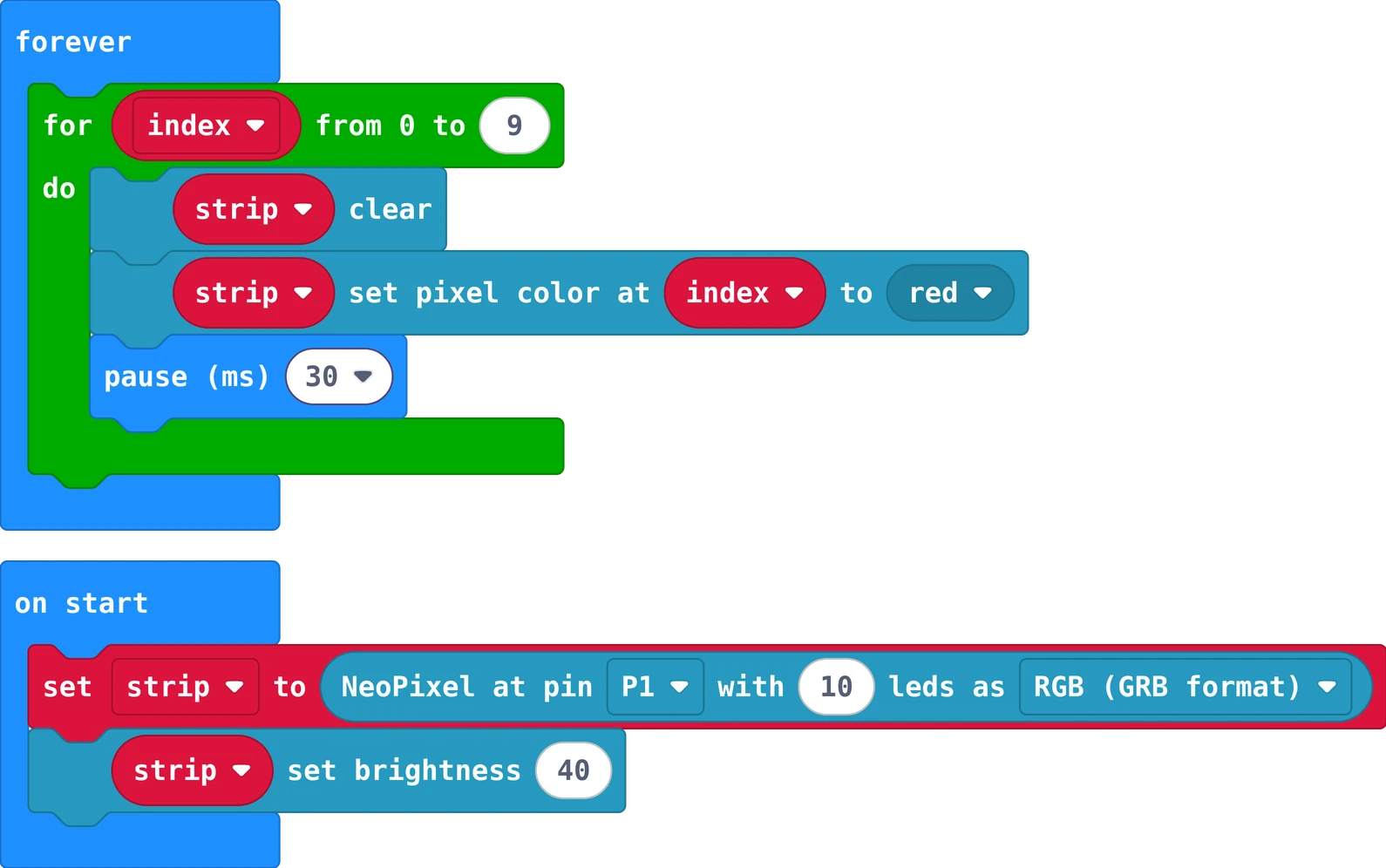
The MakeCode blocks of story 2
The same in Python
strip = neopixel.create(DigitalPin.P1, 10, NeoPixelMode.RGB)
strip.set_brightness(40)

def on_forever():
    for index in range(10):
        strip.clear()
        strip.set_pixel_color(index, neopixel.colors(NeoPixelColors.RED))
        strip.show()
        basic.pause(30)
basic.forever(on_forever)

In MakeCode, switch from Blocks to Python at the top of the editor to type it yourself.

The LEDs are numbered from 0, so 10 LEDs go from 0 to 9. LED 0 is the one next to the wires: its address is 0. Two strips plugged together? Then it is 20 LEDs, from 0 to 19.

Your turn: run back again (set pixel color at 9 − index), or leave a tail: remove strip clear and turn off the LED three places behind.

#include <Adafruit_NeoPixel.h>

const int stripPin = 6;
const int ledCount = 10;
Adafruit_NeoPixel strip(ledCount, stripPin, NEO_GRB + NEO_KHZ800);

void setup() {
  strip.begin();
  strip.setBrightness(40);
}

void loop() {
  for (int index = 0; index < ledCount; index++) {
    strip.clear();                                         // all LEDs off
    strip.setPixelColor(index, strip.Color(255, 0, 0));    // LED number index: red, green, blue
    strip.show();
    delay(30);
  }
}

The LEDs are numbered from 0, so 10 LEDs go from 0 to 9. strip.Color(255, 0, 0) makes a colour from red, green and blue, each 0 to 255.

Your turn: run back again (ledCount - 1 - index), or leave a tail of dimmer LEDs.

Story 3: Switch on the bladebuttons
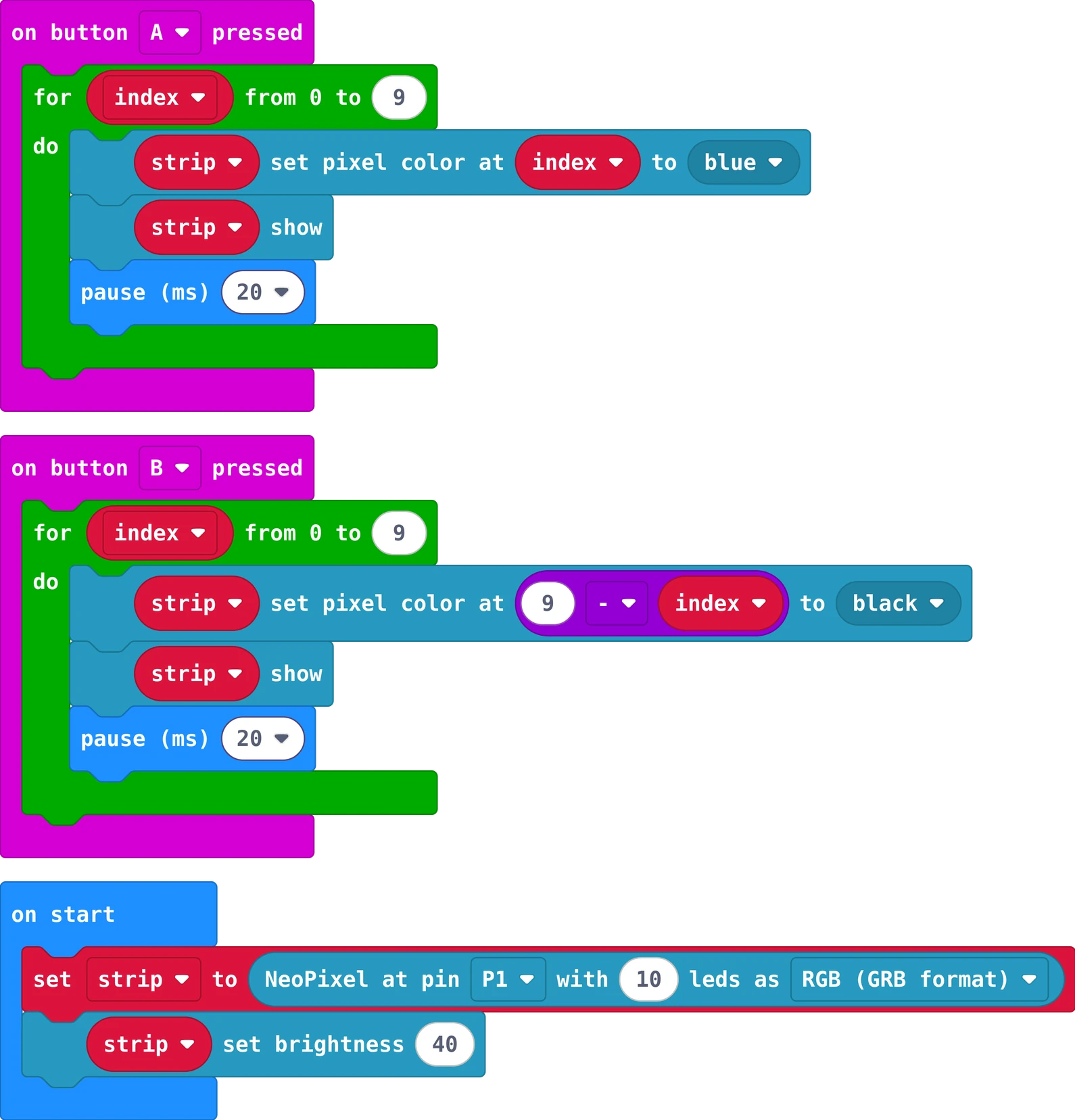
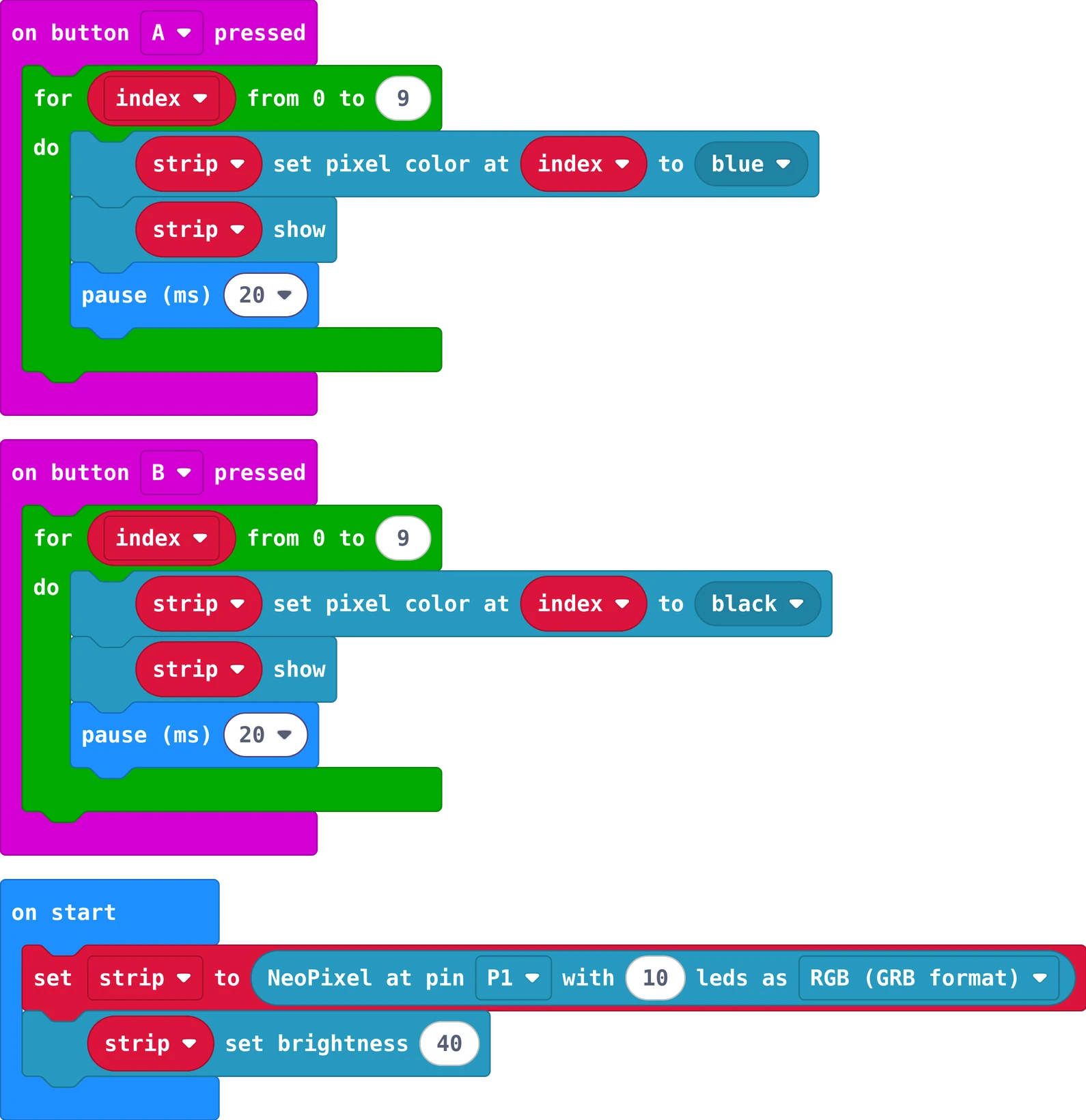
The MakeCode blocks of story 3
The same in Python
strip = neopixel.create(DigitalPin.P1, 10, NeoPixelMode.RGB)
strip.set_brightness(40)

def on_button_pressed_a():
    for index in range(10):
        strip.set_pixel_color(index, neopixel.colors(NeoPixelColors.BLUE))
        strip.show()
        basic.pause(20)
input.on_button_pressed(Button.A, on_button_pressed_a)

def on_button_pressed_b():
    for index2 in range(10):
        strip.set_pixel_color(9 - index2, neopixel.colors(NeoPixelColors.BLACK))
        strip.show()
        basic.pause(20)
input.on_button_pressed(Button.B, on_button_pressed_b)

In MakeCode, switch from Blocks to Python at the top of the editor to type it yourself.

Button A ignites the blade from the handle to the tip, button B pulls it back. Keep the story 1 on start blocks, but without the rainbow.

Your turn: pick your own blade colour with a red, green, blue block. Add a sound on the Micro:bit speaker when the blade ignites.

#include <Adafruit_NeoPixel.h>

const int stripPin = 6;
const int ledCount = 10;
const int igniteButtonPin = 2;
const int retractButtonPin = 3;
Adafruit_NeoPixel strip(ledCount, stripPin, NEO_GRB + NEO_KHZ800);

void setup() {
  strip.begin();
  strip.setBrightness(40);
  strip.show();                              // start with all LEDs off
  pinMode(igniteButtonPin, INPUT_PULLUP);    // LOW when pressed
  pinMode(retractButtonPin, INPUT_PULLUP);
}

void loop() {
  if (digitalRead(igniteButtonPin) == LOW) {
    for (int index = 0; index < ledCount; index++) {          // from the handle to the tip
      strip.setPixelColor(index, strip.Color(0, 0, 255));
      strip.show();
      delay(20);
    }
  }
  if (digitalRead(retractButtonPin) == LOW) {
    for (int index = ledCount - 1; index >= 0; index--) {     // from the tip back to the handle
      strip.setPixelColor(index, 0);
      strip.show();
      delay(20);
    }
  }
}

The ignite button lights the blade from the handle to the tip, the retract button turns it off from the tip. INPUT_PULLUP makes a pin read LOW while its button is pressed.

Your turn: your own blade colour with strip.Color(red, green, blue).

Story 4: Swing for coloursTurn for coloursmotion sensoranalog input
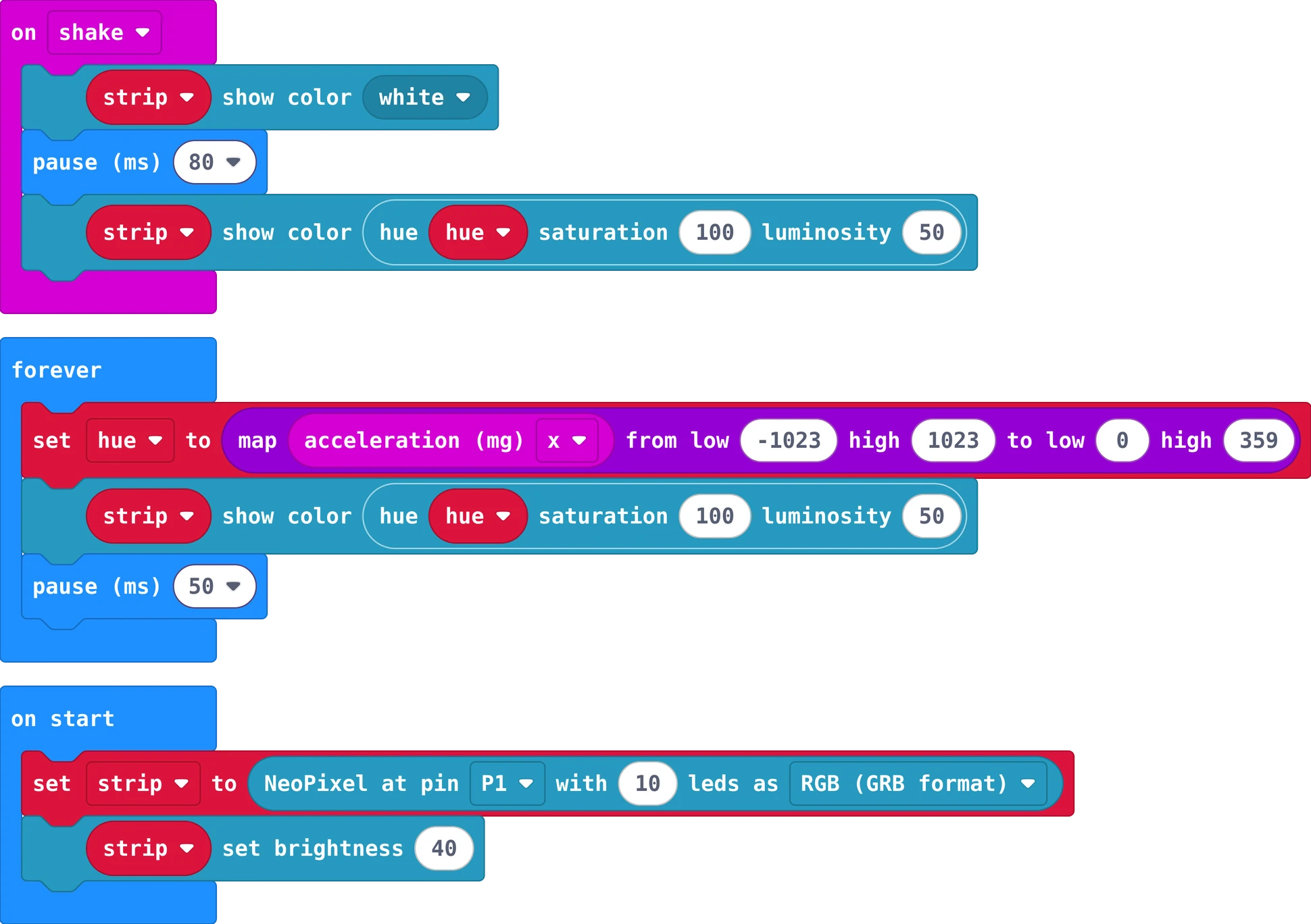
The MakeCode blocks of story 4
The same in Python
hue = 0
strip = neopixel.create(DigitalPin.P1, 10, NeoPixelMode.RGB)
strip.set_brightness(40)

def on_gesture_shake():
    strip.show_color(neopixel.colors(NeoPixelColors.WHITE))
    basic.pause(80)
    strip.show_color(neopixel.hsl(hue, 100, 50))
input.on_gesture(Gesture.SHAKE, on_gesture_shake)

def on_forever():
    global hue
    hue = Math.map(input.acceleration(Dimension.X), -1023, 1023, 0, 359)
    strip.show_color(neopixel.hsl(hue, 100, 50))
    basic.pause(50)
basic.forever(on_forever)

In MakeCode, switch from Blocks to Python at the top of the editor to type it yourself.

The Micro:bit feels movement with its accelerometer. A swing flashes the blade white. Tilting left and right gives a number from −1023 to 1023, and map turns it into a colour on the colour wheel (the hue, 0 to 359).

Your turn: only change colour while the blade is on. Hint: a variable lit that buttons A and B set to true and false.

#include <Adafruit_NeoPixel.h>

const int stripPin = 6;
const int ledCount = 10;
const int igniteButtonPin = 2;
const int retractButtonPin = 3;
const int knobPin = A0;
Adafruit_NeoPixel strip(ledCount, stripPin, NEO_GRB + NEO_KHZ800);

bool lit = false;   // is the blade on?

// The knob gives 0 to 1023; map turns it into a place on the colour wheel (0 to 65535).
uint32_t bladeColor() {
  long hue = map(analogRead(knobPin), 0, 1023, 0, 65535);
  return strip.gamma32(strip.ColorHSV(hue));
}

void setup() {
  strip.begin();
  strip.setBrightness(40);
  strip.show();
  pinMode(igniteButtonPin, INPUT_PULLUP);
  pinMode(retractButtonPin, INPUT_PULLUP);
}

void loop() {
  if (digitalRead(igniteButtonPin) == LOW && !lit) {
    for (int index = 0; index < ledCount; index++) {
      strip.setPixelColor(index, bladeColor());
      strip.show();
      delay(20);
    }
    lit = true;
  }
  if (digitalRead(retractButtonPin) == LOW && lit) {
    lit = false;
    for (int index = ledCount - 1; index >= 0; index--) {
      strip.setPixelColor(index, 0);
      strip.show();
      delay(20);
    }
  }
  if (lit) {
    strip.fill(bladeColor());   // the whole blade in the knob's colour
    strip.show();
  }
  delay(20);
}

The Arduino has no motion sensor, so a knob turns the colour. analogRead gives a number from 0 to 1023, and map turns it into a place on the colour wheel, 0 to 65535. The variable lit remembers if the blade is on.

Your turn: print the knob's value in the Serial Monitor (Serial.println).

Really stuck? Try first: you learn the most by building it yourself. If it still does not work, your teacher can give you a code for a ready-made program of your story.

Type the code in the lock at the top right of the page.

7Challenges

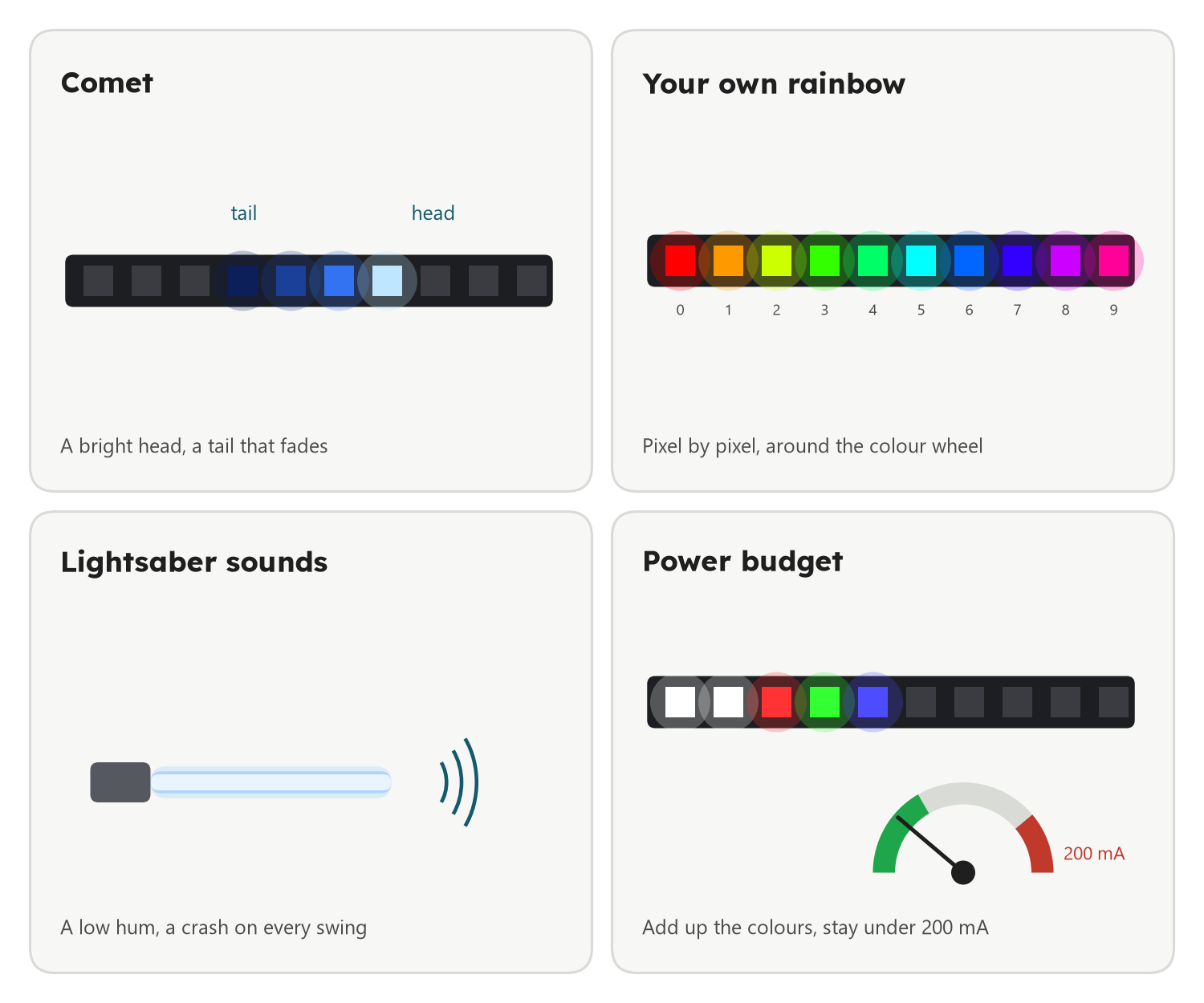
Four challenges: a comet with a fading tail, your own rainbow pixel by pixel, lightsaber sounds, and a power budget meter

Challenges

  • Comet: a bright head with a tail that fades, using set brightness or darker colours behind it.
  • Sound meter: show the microphone's sound level as a bar with show bar graph, green at the bottom, red at the top.
  • Swing button: a third button on pin 4 flashes the blade white (the finished program has it).
  • Level ruler: one LED that runs to the lower end when you tilt the strip, like a bubble in a spirit level.
  • Knob bar: the knob lights 0 to 10 LEDs, like a volume bar.
  • Lightsaber sounds: a low hum while the blade is on, a crash sound on every swing (a piezo buzzer and tone()).

Explore further

  • Your own rainbow: build it pixel by pixel with hue, without show rainbowColorHSV, without rainbow.
  • Two sabers: two Micro:bits by radio. When one swings, the other flashes too.
  • Swing strength: use acceleration (mg) strength instead of shake: the harder the swing, the brighter the flash.
  • Without waiting: use millis() instead of delay(), so the buttons work at any moment.
  • Power budget: write a program that adds up the colour numbers of all LEDs and keeps the total current under 200 mA.

Example solutions for Comet and the finished lightsaber (all stories in one, with a swing button on the Arduino). Try first; if you get stuck, or want to study it at home, ask your teacher for the code.

Type the code in the lock at the top right of the page.

8Check what you learned

Before you leave. Your teacher picks some of these for you: answer out loud, draw on paper, or work with the person next to you. Some cards change with your story: now .

Answer it

Everyone, then your story

  1. The strip has only one data wire for 10 LEDs. How can every LED still get its own colour?
  2. Why do we keep the brightness low (40) in every program?
  3. The LEDs are numbered. Which number has the LED next to the plug, and which number has the last one?
  4. What does show do? What do you see if a program sets colours but never calls show?
  5. Why does the program clear the strip before it lights the next LED?
  6. Why does the loop that pulls the blade back count backwards, from 9 to 0?
  7. With INPUT_PULLUP, why does LOW mean the button is pressed?
  8. Tilting gives a number from −1023 to 1023. What does map turn it into, and why?
  9. The knob gives a number from 0 to 1023. What does map turn it into, and why?
  10. What does the variable lit remember? What would go wrong without it?

Predict, then try

Say what will happen first, then try it in the lab or on your board

  • Make the pause 10 times longer. What changes?
  • Delete the step that clears the strip. What will the strip look like after one round?
  • The blade is off and you press the button that pulls it back. What happens?
  • Hold the Micro:bit flat, then tilt it all the way left. Which colours do you expect?
  • Turn the knob while the blade is off. Does anything happen? And when you ignite it?

Draw it

For

Draw the flow chart of your program on paper: a box for each step, a diamond for each question, arrows for the order. Then point at each box and tell your teacher what the strip shows at that moment.

How to draw a flow chart

Flow charts

A flow chart shows what a program does, one step after the other. It works for every board and every language: the blocks change, the idea stays.

  • Rounded box: where it starts
  • Box: one thing to do
  • Diamond: a question with two answers, yes and no
  • Arrow: what comes next; an arrow back up repeats

One box for each step, a diamond for each question, and follow the arrows with your finger.

More: how to draw your own

Draw on paper with a pencil. Read your program from the top and draw one box for each block or line. "Forever" and "loop" are an arrow back up. "If", "while" and "on button pressed" are questions: a diamond with yes and no. Then point at the boxes with your finger and say out loud what the board does. If your finger gets stuck, the program would get stuck too.

I can …

Tick what is true for you today

Find the bug

A mistake we often see in class. What does the board do? Why? How do you fix it?

"The wires are right and the program downloads, but the strip stays dark."

The MakeCode blocks of this program
The same in Python
strip = neopixel.create(DigitalPin.P1, 10, NeoPixelMode.RGB)
strip.set_brightness(40)

def on_forever():
    for index in range(10):
        strip.clear()
        strip.set_pixel_color(index, neopixel.colors(NeoPixelColors.RED))
        basic.pause(30)
basic.forever(on_forever)

"The program uploads without errors, but the strip stays dark." The strip is wired as in Wire it.

#include <Adafruit_NeoPixel.h>

const int stripPin = 5;
const int ledCount = 10;
Adafruit_NeoPixel strip(ledCount, stripPin, NEO_GRB + NEO_KHZ800);

void setup() {
  strip.begin();
  strip.setBrightness(40);
}

void loop() {
  for (int index = 0; index < ledCount; index++) {
    strip.clear();
    strip.setPixelColor(index, strip.Color(255, 0, 0));
    strip.show();
    delay(30);
  }
}

"The blade goes back the wrong way: it switches off from the handle, not from the tip."

The MakeCode blocks of this program
The same in Python
strip = neopixel.create(DigitalPin.P1, 10, NeoPixelMode.RGB)
strip.set_brightness(40)

def on_button_pressed_a():
    for index in range(10):
        strip.set_pixel_color(index, neopixel.colors(NeoPixelColors.BLUE))
        strip.show()
        basic.pause(20)
input.on_button_pressed(Button.A, on_button_pressed_a)

def on_button_pressed_b():
    for index2 in range(10):
        strip.set_pixel_color(index2, neopixel.colors(NeoPixelColors.BLACK))
        strip.show()
        basic.pause(20)
input.on_button_pressed(Button.B, on_button_pressed_b)

"When the blade goes back, the first LED at the handle always stays lit."

  if (digitalRead(retractButtonPin) == LOW) {
    for (int index = ledCount - 1; index > 0; index--) {
      strip.setPixelColor(index, 0);
      strip.show();
      delay(20);
    }
  }

Ask one question

Each of you asks one question about today

Ask your teacher or the class one question about today. Anything counts: a part, a block, a word on this page, something that went wrong, or where this is used in real life. There are no wrong questions, only questions nobody asked.

Start with: Why does …?   What happens if …?   How does a real … do it?   What does … mean?   Could I use this to …?

Answers for the teacher. The answers to the cards above, and a model flow chart for each story.

Type the code in the lock at the top right of the page.

Poster to print (PDF)

Poster to print (PDF)