 START A BIT
Rainbow lightsaber: Micro:bit or Arduino
Addressable LEDs: one data wire tells every LED its own colour. Make a rainbow that runs, a lightsaber that ignites with a button, and a blade that changes colour. On the Micro:bit or on the Arduino.
Addressable LEDs: one data wire tells every LED its own colour. Make a rainbow that runs, a lightsaber that ignites with a button, and a blade that changes colour. On the Micro:bit or on the Arduino.
 Scan to open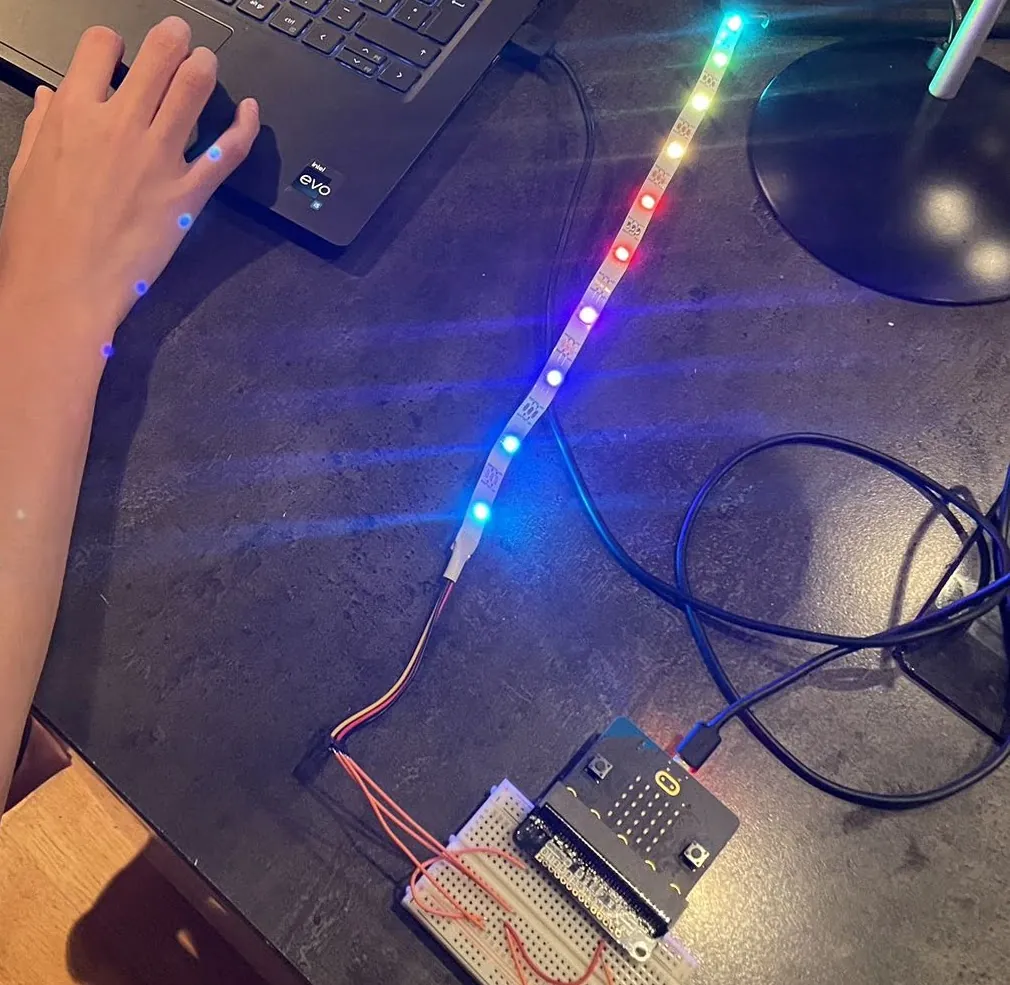
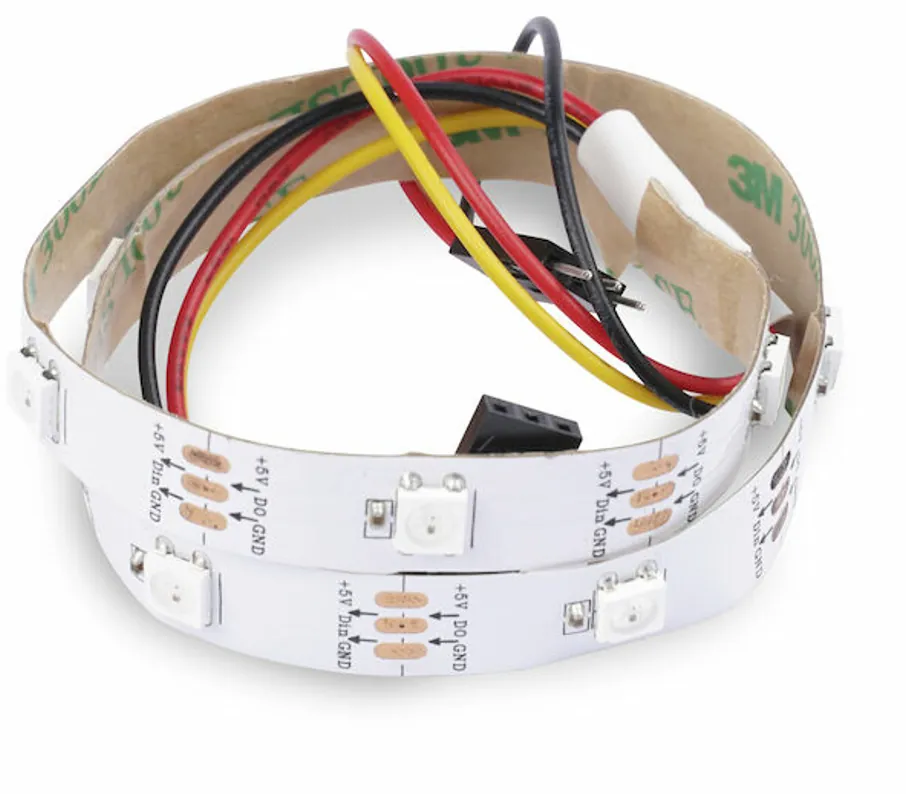
Look closely at the strip. Each LED is a tiny square with three colours inside: red, green and blue, and a tiny chip. Between the LEDs you can read +5V, DIN (data in), DO (data out) and GND, with small arrows. The arrows show which way the data travels: connect your board to the end where they start.
LEDs like these are called addressable LEDs: every LED has a number, its address, and the program sets each one on its own. You will also see the names NeoPixel (the MakeCode extension and the Arduino library) and ZIP LEDs.
New here? Start at level 1 and follow the code. Done quickly? Every level has a "your turn" task, and the challenges at the end go much further.
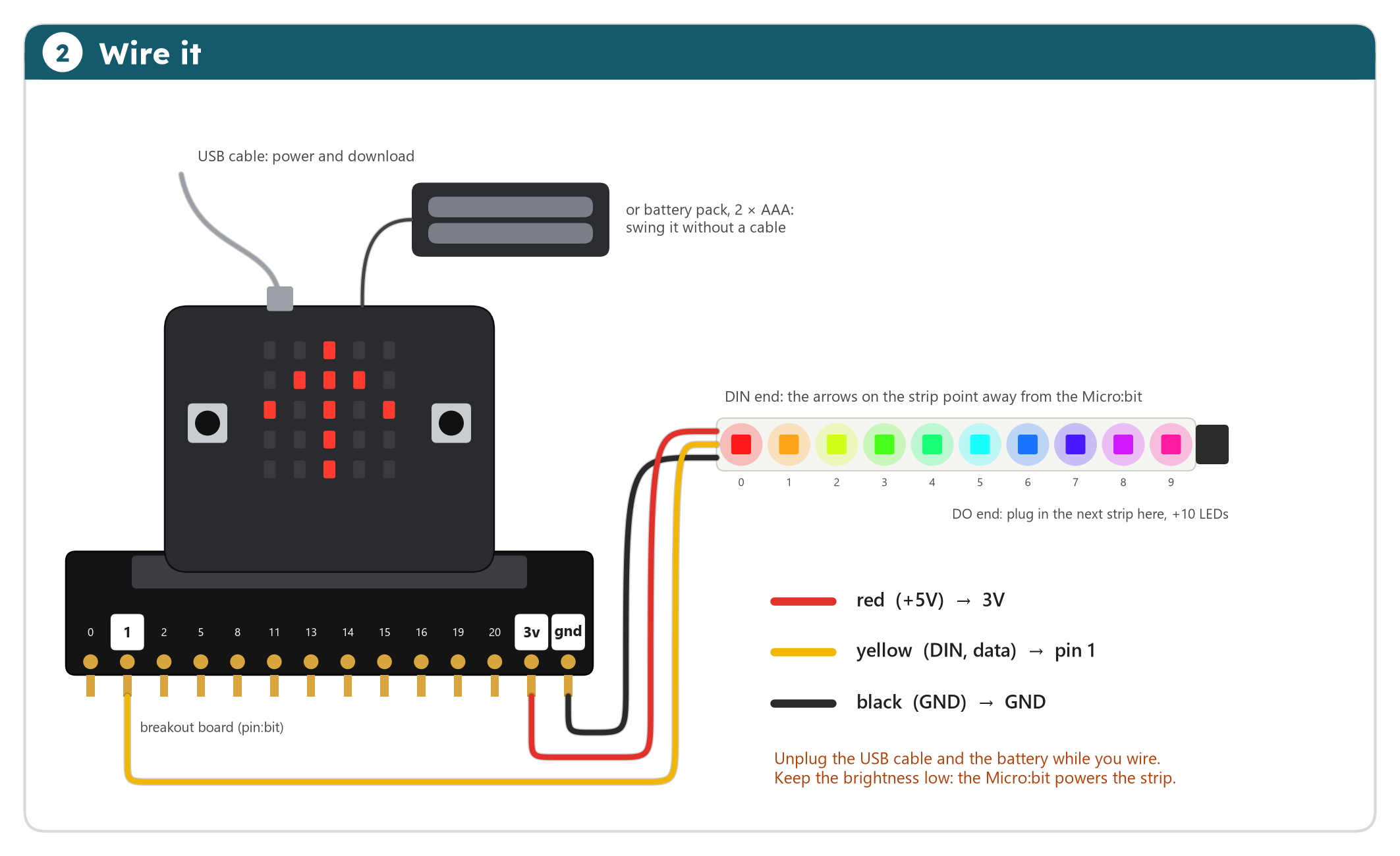
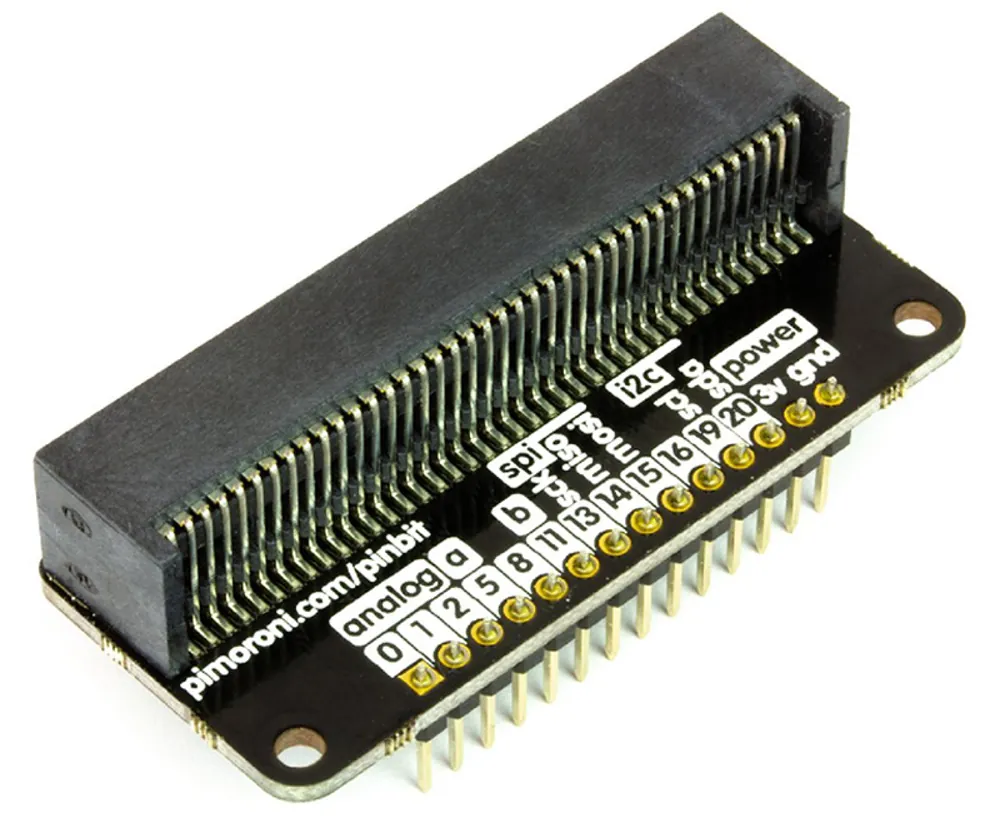
Push the Micro:bit into the breakout board, and the breakout board into the breadboard. The pin names are printed on the board: find 1, 3v and gnd (GND, ground). We use pin 1 (P1 in MakeCode) for the data, because pin 0 also plays the music. Power the Micro:bit with the USB cable; the battery pack is only for swinging it around at level 4.
Keep the brightness low (we use 40 out of 255). One strip on full white needs about 600 mA, three times more than the Micro:bit can give. Then it restarts or the colours go wrong.
Build it bit by bit: levels 1 and 2 need only the strip. Add the two buttons for level 3 and the knob for level 4.
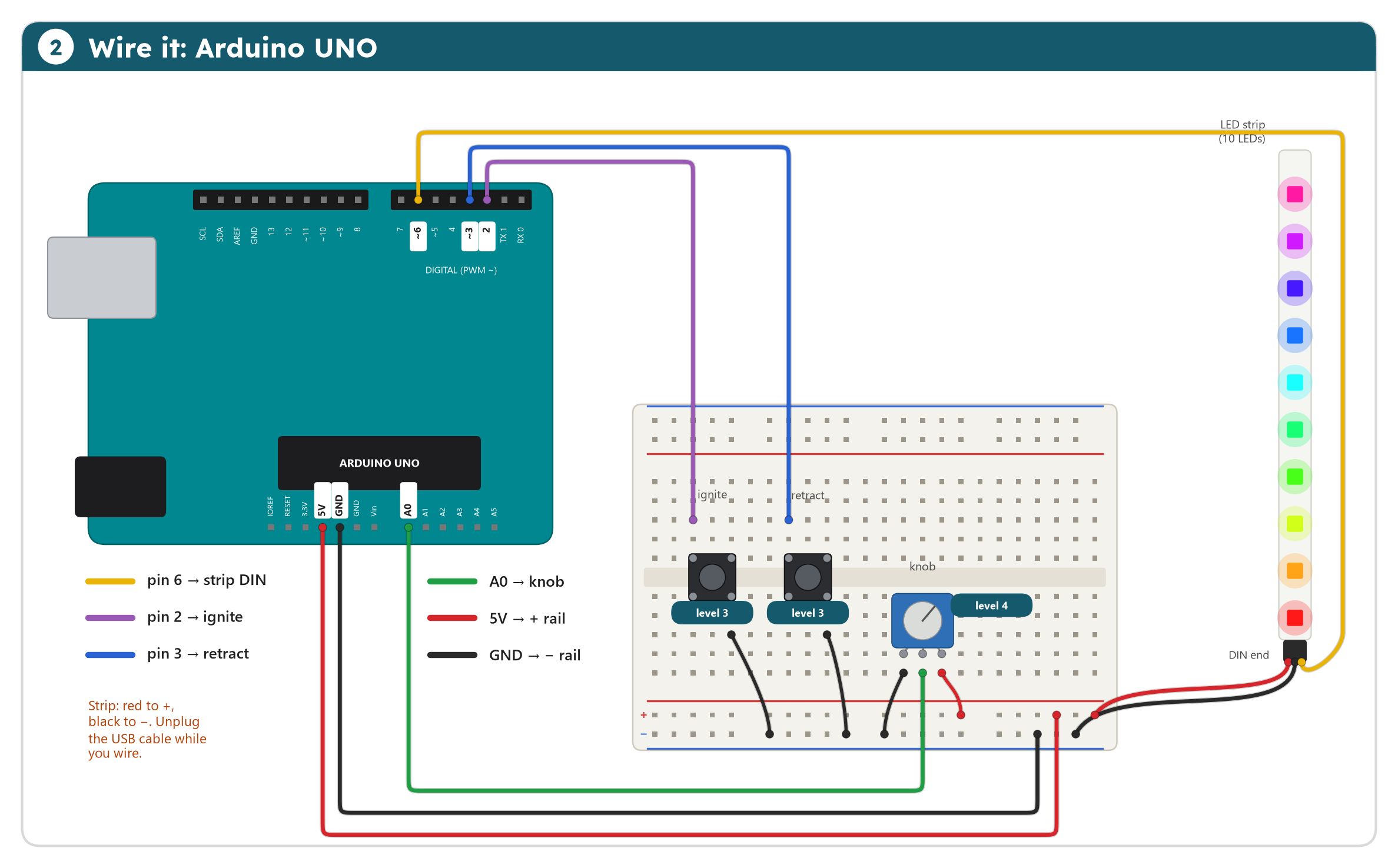
The strip gets 5 V from the Arduino through the breadboard rails: red to the + rail, black to the − rail, and the yellow data wire to pin 6. The two buttons sit across the middle gap. The knob has three legs: the outer ones go to + and −, the middle one to A0.
Keep the brightness low (we use 40 out of 255). One strip on full white needs about 600 mA; a laptop's USB port gives the Arduino about 500 mA in total.
The LED strip lab works like the real strip, with three strips plugged together: 30 LEDs. Try the rainbow, the running light and the lightsaber, and move the brightness slider: watch how much power the strip needs.
Open the LED strip lab in a new tab
Not every LED strip works like this. In a simple strip all LEDs share the same wires, so they all show the same colour. In an addressable LED strip every LED has its own tiny chip, so each LED can show its own colour.
The board sends a long row of bits on the yellow wire, one after the other: 24 bits for each LED, 8 for green, 8 for red and 8 for blue. 8 bits give a number from 0 to 255, so each LED can show 256 × 256 × 256 = about 16.7 million colours.
The first chip keeps the first 24 bits and passes everything else on through DO. The second chip keeps the next 24 bits, and so on. So the position in the row is the LED's address: one data wire is enough for the whole strip, even with many strips plugged together.
The bits travel at 800,000 per second: 10 LEDs get their colours in about 0.3 milliseconds.
Power: each of the three colours takes about 20 mA at full brightness. One LED on white: 60 mA. One strip of 10 LEDs on white: 600 mA, and every extra strip adds 600 mA. The Micro:bit can give the strips roughly 200 mA, an Arduino on USB about 500 mA, so brightness 40 of 255 is a good limit.
Brightness does not send less data: the program makes every colour number smaller before it sends it.
See it happen in the lab above: Inside the strip, then Send the next 24 bits.
Open MakeCode, start a new project and add the extension: Extensions, search neopixel. Its blocks appear in the blue Neopixel drawer. Go as far as you like: every level works on its own. Click a level to open it.
Start the MakeCode tutorial all 4 levels, step by step
The Arduino needs a library for the LED strip: ready-made code that someone wrote and shared, so you do not have to send the 24 bits per LED yourself.
Go as far as you like: every level works on its own. Click a level to open it.
rotate moves every colour one LED along, and the last one comes back to the start. show sends the new colours to the strip: nothing changes until you show.
Your turn: make it run faster, slower, or the other way (rotate by -1). Rainbow from 1 to 120?
#include <Adafruit_NeoPixel.h>

const int stripPin = 6;
const int ledCount = 10;
Adafruit_NeoPixel strip(ledCount, stripPin, NEO_GRB + NEO_KHZ800);   // the strip object from the library

unsigned int firstHue = 0;   // where the rainbow starts on the colour wheel (0 to 65535)

void setup() {
  strip.begin();
  strip.setBrightness(40);   // of 255: keep it low
}

void loop() {
  strip.rainbow(firstHue);   // the whole colour wheel along the strip
  strip.show();              // send the colours to the strip
  firstHue += 512;           // move the rainbow a little
  delay(20);
}
Sketch file: level1_rainbow.ino
rainbow paints the whole colour wheel along the strip, starting at firstHue. Adding 512 each time moves it a little. show sends the new colours to the strip: nothing changes until you show.
Your turn: make it run faster, slower, or the other way (firstHue -= 512).
The LEDs are numbered from 0, so 10 LEDs go from 0 to 9. LED 0 is the one next to the wires: its address is 0. Two strips plugged together? Then it is 20 LEDs, from 0 to 19.
Your turn: run back again (set pixel color at 9 − index), or leave a tail: remove strip clear and turn off the LED three places behind.
#include <Adafruit_NeoPixel.h>

const int stripPin = 6;
const int ledCount = 10;
Adafruit_NeoPixel strip(ledCount, stripPin, NEO_GRB + NEO_KHZ800);

void setup() {
  strip.begin();
  strip.setBrightness(40);
}

void loop() {
  for (int index = 0; index < ledCount; index++) {
    strip.clear();                                         // all LEDs off
    strip.setPixelColor(index, strip.Color(255, 0, 0));    // LED number index: red, green, blue
    strip.show();
    delay(30);
  }
}
Sketch file: level2_running_light.ino
The LEDs are numbered from 0, so 10 LEDs go from 0 to 9. strip.Color(255, 0, 0) makes a colour from red, green and blue, each 0 to 255.
Your turn: run back again (ledCount - 1 - index), or leave a tail of dimmer LEDs.
Button A ignites the blade from the handle to the tip, button B pulls it back. Keep the level 1 on start blocks, but without the rainbow.
Your turn: pick your own blade colour with a red, green, blue block. Add a sound on the Micro:bit speaker when the blade ignites.
#include <Adafruit_NeoPixel.h>

const int stripPin = 6;
const int ledCount = 10;
const int igniteButtonPin = 2;
const int retractButtonPin = 3;
Adafruit_NeoPixel strip(ledCount, stripPin, NEO_GRB + NEO_KHZ800);

void setup() {
  strip.begin();
  strip.setBrightness(40);
  strip.show();                              // start with all LEDs off
  pinMode(igniteButtonPin, INPUT_PULLUP);    // LOW when pressed
  pinMode(retractButtonPin, INPUT_PULLUP);
}

void loop() {
  if (digitalRead(igniteButtonPin) == LOW) {
    for (int index = 0; index < ledCount; index++) {          // from the handle to the tip
      strip.setPixelColor(index, strip.Color(0, 0, 255));
      strip.show();
      delay(20);
    }
  }
  if (digitalRead(retractButtonPin) == LOW) {
    for (int index = ledCount - 1; index >= 0; index--) {     // from the tip back to the handle
      strip.setPixelColor(index, 0);
      strip.show();
      delay(20);
    }
  }
}
Sketch file: level3_lightsaber.ino
The ignite button lights the blade from the handle to the tip, the retract button turns it off from the tip. INPUT_PULLUP makes a pin read LOW while its button is pressed.
Your turn: your own blade colour with strip.Color(red, green, blue).
The Micro:bit feels movement with its accelerometer. A swing flashes the blade white. Tilting left and right gives a number from −1023 to 1023, and map turns it into a colour on the colour wheel (the hue, 0 to 359).
Your turn: only change colour while the blade is on. Hint: a variable lit that buttons A and B set to true and false.
#include <Adafruit_NeoPixel.h>

const int stripPin = 6;
const int ledCount = 10;
const int igniteButtonPin = 2;
const int retractButtonPin = 3;
const int knobPin = A0;
Adafruit_NeoPixel strip(ledCount, stripPin, NEO_GRB + NEO_KHZ800);

bool lit = false;   // is the blade on?

// The knob gives 0 to 1023; map turns it into a place on the colour wheel (0 to 65535).
uint32_t bladeColor() {
  long hue = map(analogRead(knobPin), 0, 1023, 0, 65535);
  return strip.gamma32(strip.ColorHSV(hue));
}

void setup() {
  strip.begin();
  strip.setBrightness(40);
  strip.show();
  pinMode(igniteButtonPin, INPUT_PULLUP);
  pinMode(retractButtonPin, INPUT_PULLUP);
}

void loop() {
  if (digitalRead(igniteButtonPin) == LOW && !lit) {
    for (int index = 0; index < ledCount; index++) {
      strip.setPixelColor(index, bladeColor());
      strip.show();
      delay(20);
    }
    lit = true;
  }
  if (digitalRead(retractButtonPin) == LOW && lit) {
    lit = false;
    for (int index = ledCount - 1; index >= 0; index--) {
      strip.setPixelColor(index, 0);
      strip.show();
      delay(20);
    }
  }
  if (lit) {
    strip.fill(bladeColor());   // the whole blade in the knob's colour
    strip.show();
  }
  delay(20);
}
Sketch file: level4_knob.ino
The Arduino has no motion sensor, so a knob turns the colour. analogRead gives a number from 0 to 1023, and map turns it into a place on the colour wheel, 0 to 65535. The variable lit remembers if the blade is on.
Your turn: print the knob's value in the Serial Monitor (Serial.println).
The finished program, all levels in one, for your board. Try it yourself first; if you are really stuck, ask your teacher for the code.
Next step, real Python: lightsaber.py is the same lightsaber in MicroPython. Open it in python.microbit.org and download it to the Micro:bit.