Micro:bitArduinoMakeCodePythonC++ExplorersBuilders

Blinking lights: police car and traffic light

Make a light blink, flash red and blue like a police car, then build a traffic light with a button to cross the street. Choose the Micro:bit or the Arduino: you build the same thing.

QR code to this pageScan to open

1See it in action


On screen: a police car with a red and a blue light blinking in turns
Flash like a police car story 2, on screen

Red, yellow and green LEDs on a breadboard change like a traffic light
Run a traffic light story 3, built in class
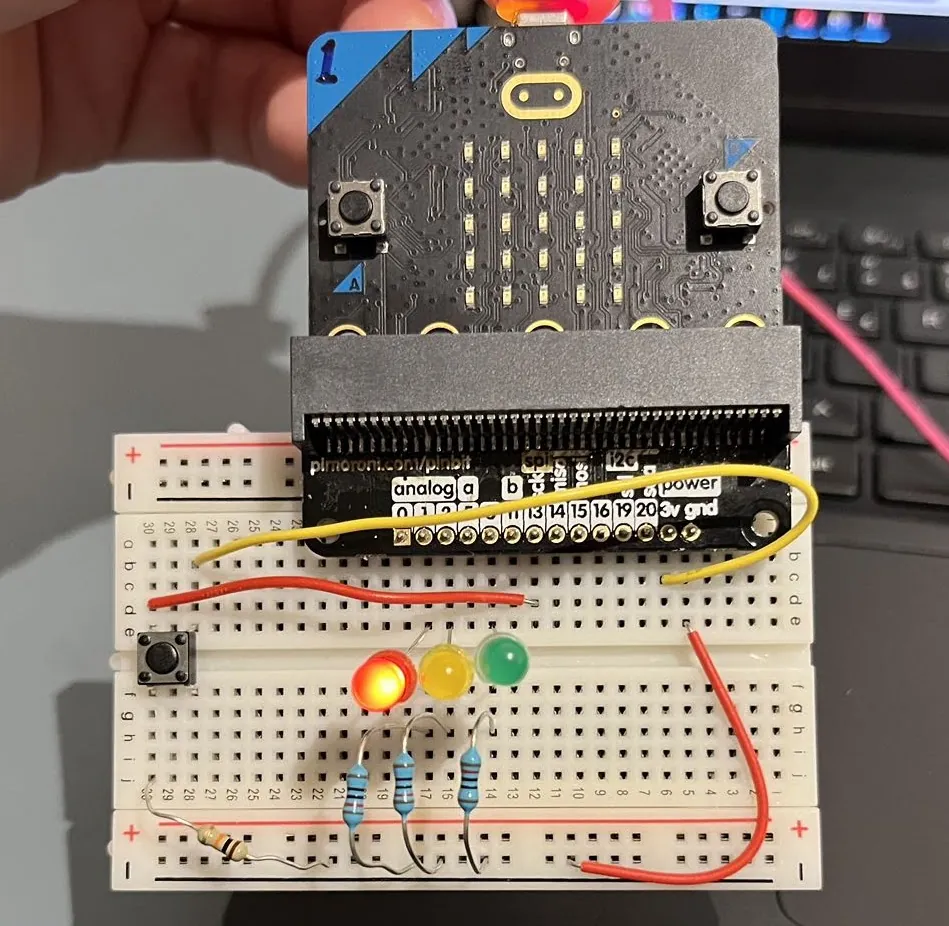
A Micro:bit on a breakout board with red, yellow and green LEDs and a push button on a breadboard
Press to cross story 4, built in class

2Parts you need

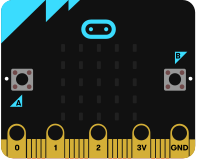
Micro:bit
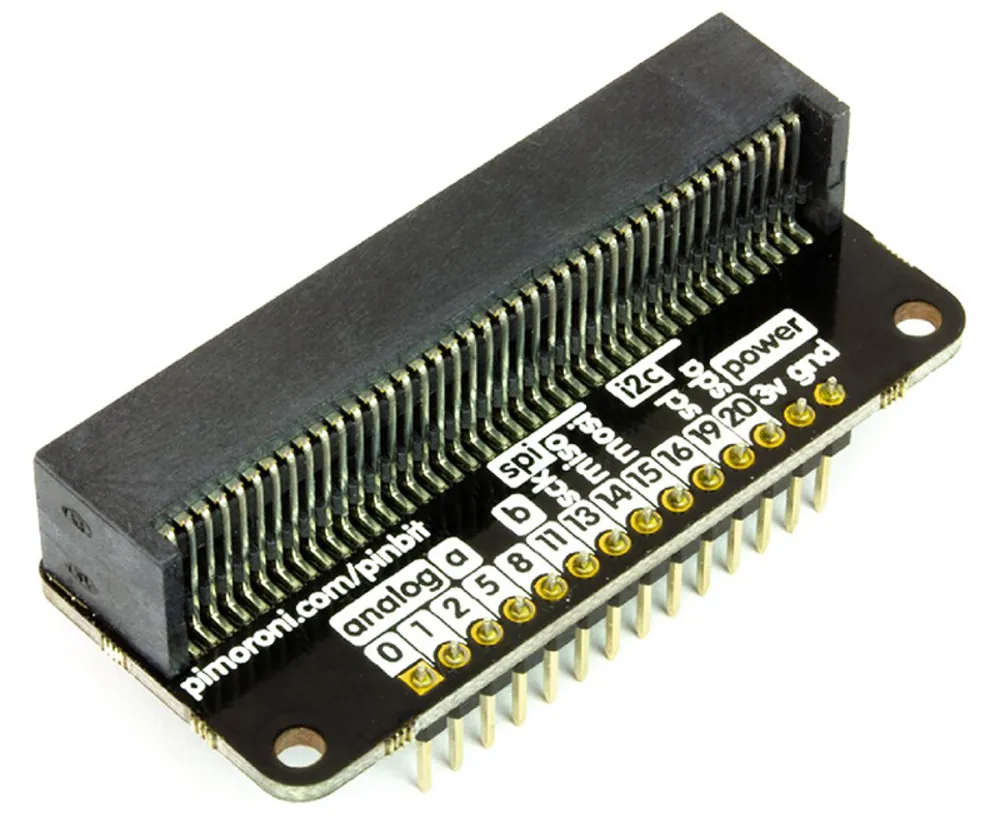
Breakout board (pin:bit)
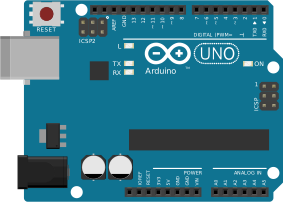
Arduino UNO
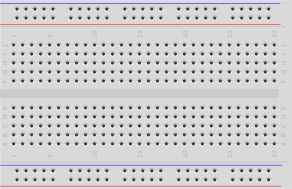
Breadboard
LEDs
220 Ω resistors
Push buttonfrom story 4

And jumper wires and a USB cable: your teacher hands them out.

Blue looks dim on the Micro:bit with 220 Ω. A 100 Ω resistor makes it brighter, if you have one.

Another Arduino board?

Other boards work with the same pins. In the Arduino IDE choose Arduino Uno for the UNO R3, Arduino Uno WiFi Rev2 for the WiFi board (the first time: Boards Manager, install "Arduino megaAVR Boards"), or Arduino Nano for a Nano (pins D2 to D7 and GND).

3Learn the basics

The parts of this project, each explained once for all projects. Open "More" to dig deeper.

Breadboard

Push the legs of your parts into the holes: metal clips inside connect them, no soldering needed.

The five holes of one column are connected: a to e (yellow) and f to j (green). The middle gap separates the two halves. The long rails along the edges are connected along their whole row: + (red) and − (blue).

Two legs in the same column are connected. Two legs in the same row are not.

More: using the rails

Put a wire from GND to the − rail: now every part can reach GND from close by. The same for the + rail with 3V (Micro:bit) or 5V (Arduino). On some breadboards the rails are split in the middle: if a part at the far end does nothing, add a short wire to bridge the gap.

Columns are numbered 1 to 30 and rows are named a to j, so every hole has a name like e12. The wiring pictures on this website use these names.

LED

An LED (light-emitting diode) lights up when current flows through it, but only in one direction. The long leg is + (anode), the short leg is − (cathode); the rim of the LED is also flat on the − side.

Long leg towards the pin, short leg towards GND, and always a resistor in the loop.

More: the loop, and the program

The loop

Current flows from the pin, through the resistor and the LED, into GND. When the program sets the pin to on (1, HIGH), the LED lights; off (0, LOW), and it is dark. Turned the wrong way round, nothing breaks, it just stays dark: turn it and try again.

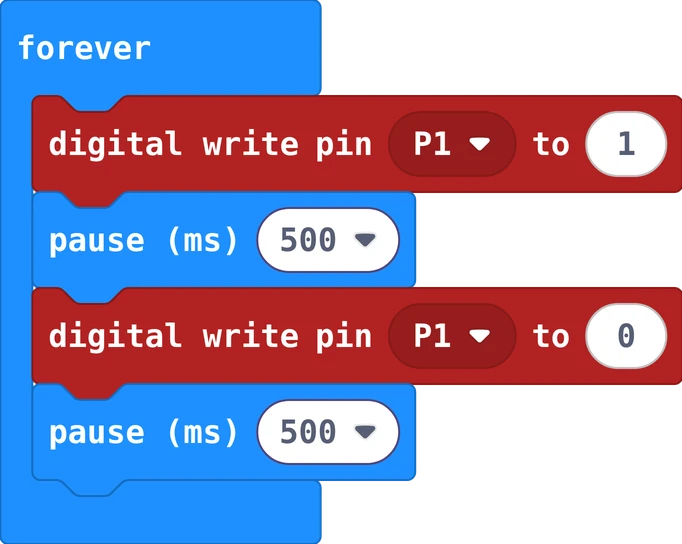
Blink: on, wait, off, wait

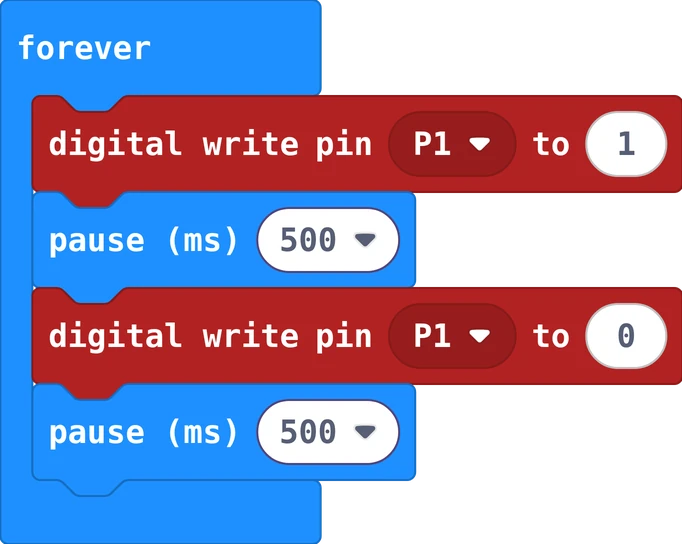
The MakeCode blocks of this program
The same in Python
def on_forever():
    pins.digital_write_pin(DigitalPin.P1, 1)
    basic.pause(500)
    pins.digital_write_pin(DigitalPin.P1, 0)
    basic.pause(500)
basic.forever(on_forever)
void setup() {
  pinMode(2, OUTPUT);           // pin 2 is an output
}

void loop() {
  digitalWrite(2, HIGH);        // on
  delay(500);
  digitalWrite(2, LOW);         // off
  delay(500);
}

Without the waits the LED would switch thousands of times a second, and you would only see a dim glow.

A resistor with the colour bands red, red, brown and gold

Resistor

A resistor makes it harder for current to flow. With an LED it keeps the current small, so the LED and the board's pin stay safe. It works either way round.

For an LED: 220 Ω, the bands red, red, brown (and a gold one).

More: reading the colours

Hold the resistor with the gold band on the right. The first two bands are digits, the third says how many zeros follow:

black 0brown 1 red 2orange 3 yellow 4
green 5blue 6 violet 7grey 8 white 9

red red brown = 2, 2 and one zero = 220 Ω (ohm). More ohms let less current through, so the LED gets dimmer. On the Micro:bit (3 V) LEDs are a bit dimmer than on the Arduino (5 V); a blue LED needs almost 3 V and looks dim on the Micro:bit.

Push button

The button has four legs. It sits across the middle gap: the two legs on the left side are always connected (purple column), and so are the two on the right (black column). Pressing the button connects the left side to the right side.

One side to a pin, the other side to GND. With pull up, the pin reads 1, and 0 while pressed.

More: pull up, and the program

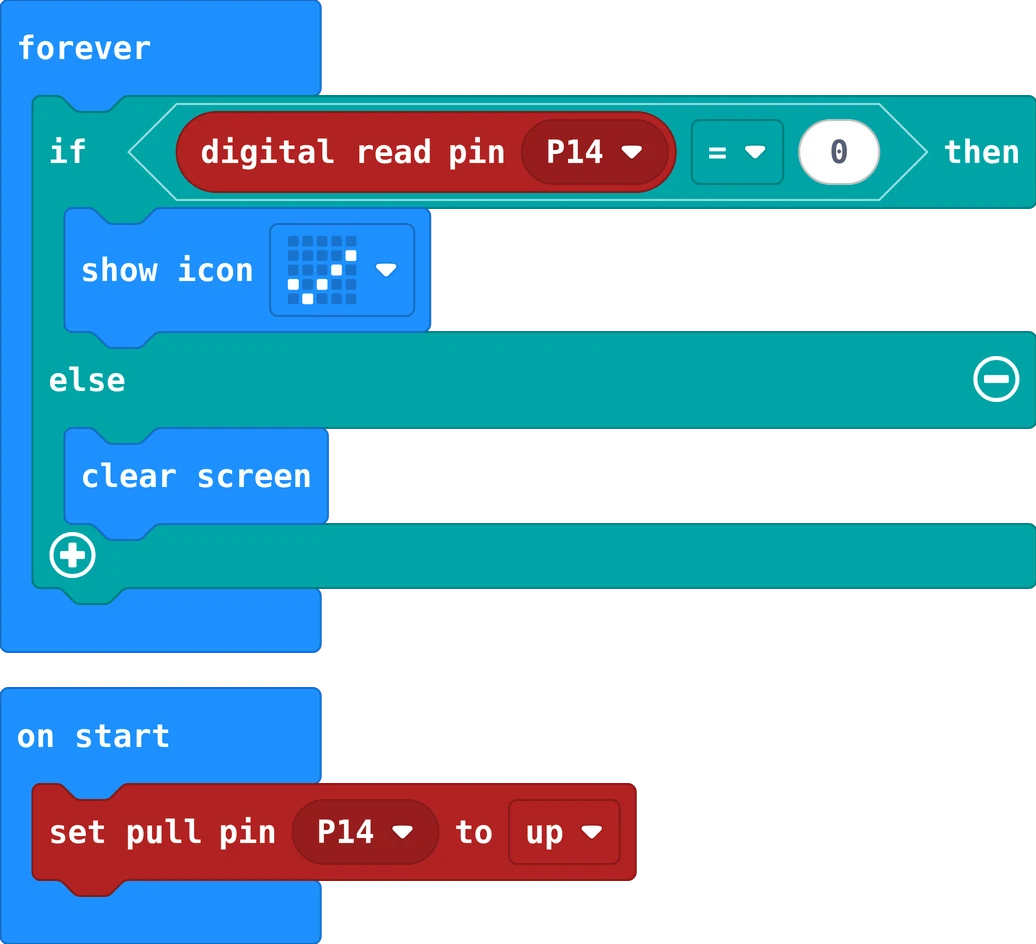
A pin connected to nothing reads random values. Pull up connects it inside the board to + through a big resistor: it reads 1 while the button is free. Pressing connects the pin to GND, and it reads 0. That is why the program checks for 0.

The MakeCode blocks of this program
The same in Python
pins.set_pull(DigitalPin.P14, PinPullMode.PULL_UP)

def on_forever():
    if pins.digital_read_pin(DigitalPin.P14) == 0:
        basic.show_icon(IconNames.YES)
    else:
        basic.clear_screen()
basic.forever(on_forever)
void setup() {
  pinMode(7, INPUT_PULLUP);           // 1 (HIGH) when free, 0 (LOW) when pressed
  pinMode(LED_BUILTIN, OUTPUT);
}

void loop() {
  if (digitalRead(7) == LOW) {
    digitalWrite(LED_BUILTIN, HIGH);  // pressed: the board's own LED lights
  } else {
    digitalWrite(LED_BUILTIN, LOW);
  }
}

4Wire it

The picture shows the wiring for your story. Start with one LED; each story adds a little, and nothing you built has to change. The new parts have a dashed box.

Each wire goes to the left end of a resistor; the LED's long leg (+) sits in the column of the resistor's right end, its short leg in the − rail.

5Try it

The lights lab runs every story, step by step: watch which pins are 1 and which are 0. In story 4, press the button.

Open the lights lab in a new tab

6Program it

You see the program for . Choose another story in the bar at the top of the page.

In MakeCode, the pin blocks are under Advanced, then Pins. Go as far as you like: every story works on its own.

Start the MakeCode tutorial all 4 stories, step by step

In the Arduino IDE: type the code line by line, choose your board and port, then Upload. Go as far as you like: every story works on its own.

Story 1: Make it blinkon, off, wait

The MakeCode blocks of story 1
The same in Python
def on_forever():
    pins.digital_write_pin(DigitalPin.P1, 1)
    basic.pause(500)
    pins.digital_write_pin(DigitalPin.P1, 0)
    basic.pause(500)
basic.forever(on_forever)

In MakeCode, switch from Blocks to Python at the top of the editor to type it yourself.

const int redLedPin = 2;

void setup() {
  pinMode(redLedPin, OUTPUT);
}

void loop() {
  digitalWrite(redLedPin, HIGH);   // on
  delay(500);
  digitalWrite(redLedPin, LOW);    // off
  delay(500);
}

A program sets the pin, then waits. Without the pauses the LED would switch thousands of times a second, and you would only see a dim glow.

Your turn: make it blink faster. How short can the pause be before you stop seeing the blinking?

Story 2: Flash like a police cartwo LEDs take turns
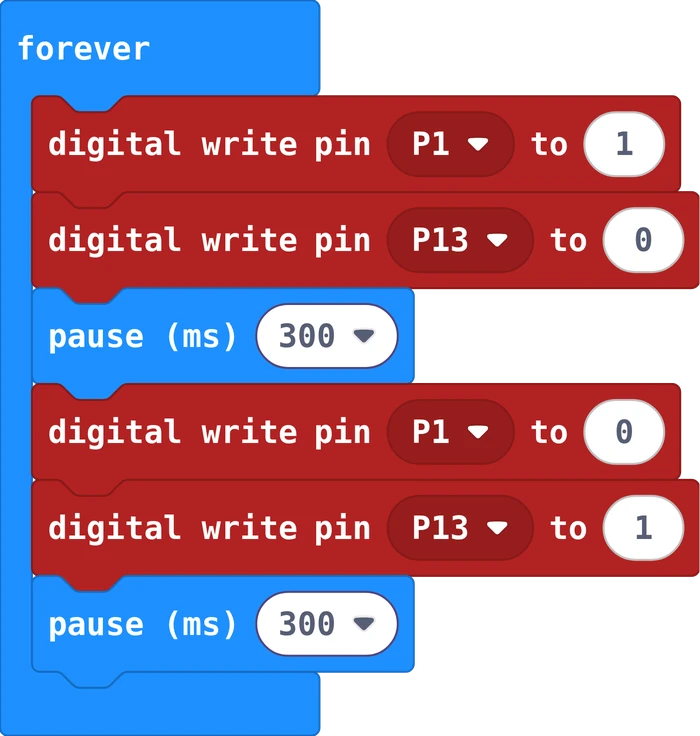
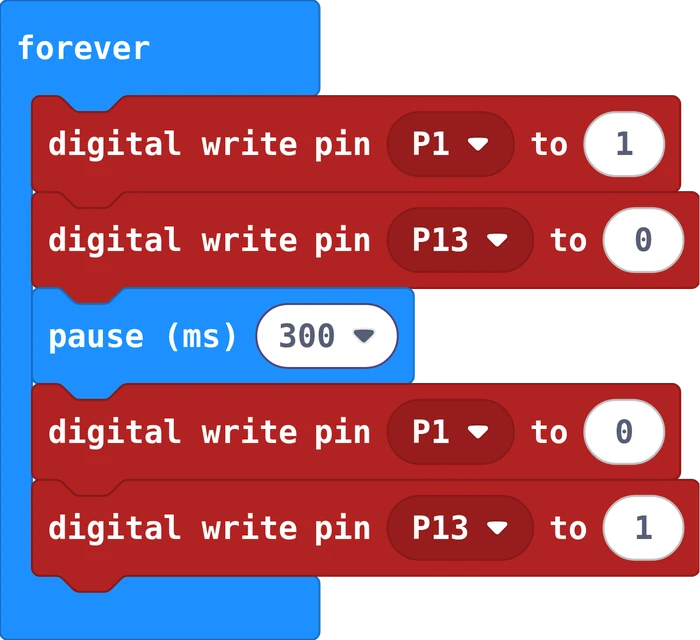
The MakeCode blocks of story 2
The same in Python
def on_forever():
    pins.digital_write_pin(DigitalPin.P1, 1)
    pins.digital_write_pin(DigitalPin.P13, 0)
    basic.pause(300)
    pins.digital_write_pin(DigitalPin.P1, 0)
    pins.digital_write_pin(DigitalPin.P13, 1)
    basic.pause(300)
basic.forever(on_forever)

In MakeCode, switch from Blocks to Python at the top of the editor to type it yourself.

const int redLedPin = 2;
const int blueLedPin = 5;

void setup() {
  pinMode(redLedPin, OUTPUT);
  pinMode(blueLedPin, OUTPUT);
}

void loop() {
  digitalWrite(redLedPin, HIGH);
  digitalWrite(blueLedPin, LOW);
  delay(300);
  digitalWrite(redLedPin, LOW);
  digitalWrite(blueLedPin, HIGH);
  delay(300);
}

Each step sets both LEDs: one on, the other off. Then a short wait, and the other way round.

Your turn: a double flash, like real police cars: red on, off, on, off, then blue the same.

Story 3: Run a traffic lighta fixed order
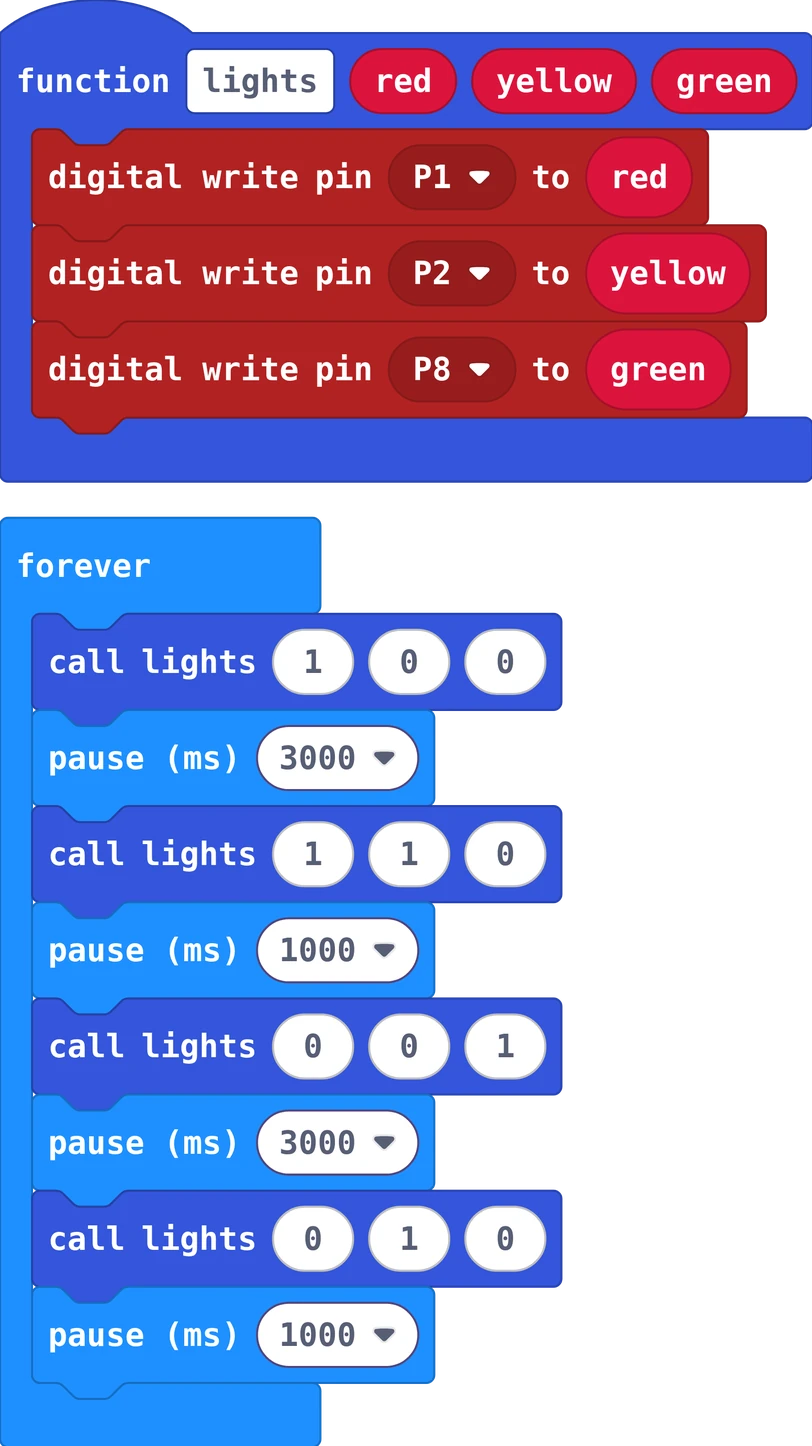
The MakeCode blocks of story 3
The same in Python
def lights(red: number, yellow: number, green: number):
    pins.digital_write_pin(DigitalPin.P1, red)
    pins.digital_write_pin(DigitalPin.P2, yellow)
    pins.digital_write_pin(DigitalPin.P8, green)

def on_forever():
    lights(1, 0, 0)
    basic.pause(3000)
    lights(1, 1, 0)
    basic.pause(1000)
    lights(0, 0, 1)
    basic.pause(3000)
    lights(0, 1, 0)
    basic.pause(1000)
basic.forever(on_forever)

In MakeCode, switch from Blocks to Python at the top of the editor to type it yourself.

const int redLedPin = 2;
const int yellowLedPin = 3;
const int greenLedPin = 4;

// Switch the three lights at once: true is on, false is off.
void setLights(bool red, bool yellow, bool green) {
  digitalWrite(redLedPin, red);
  digitalWrite(yellowLedPin, yellow);
  digitalWrite(greenLedPin, green);
}

void setup() {
  pinMode(redLedPin, OUTPUT);
  pinMode(yellowLedPin, OUTPUT);
  pinMode(greenLedPin, OUTPUT);
}

void loop() {
  setLights(true, false, false);   // red: stop
  delay(3000);
  setLights(true, true, false);    // red and yellow: get ready
  delay(1000);
  setLights(false, false, true);   // green: go
  delay(3000);
  setLights(false, true, false);   // yellow: stop if you can
  delay(1000);
}

The order in Sweden: red, red and yellow, green, yellow, and back to red. A function switches all three lights in one line, so the main loop reads like the order itself.

Your turn: time a real traffic light near you and copy its times.

Story 4: Press to crossinput
The MakeCode blocks of story 4
The same in Python
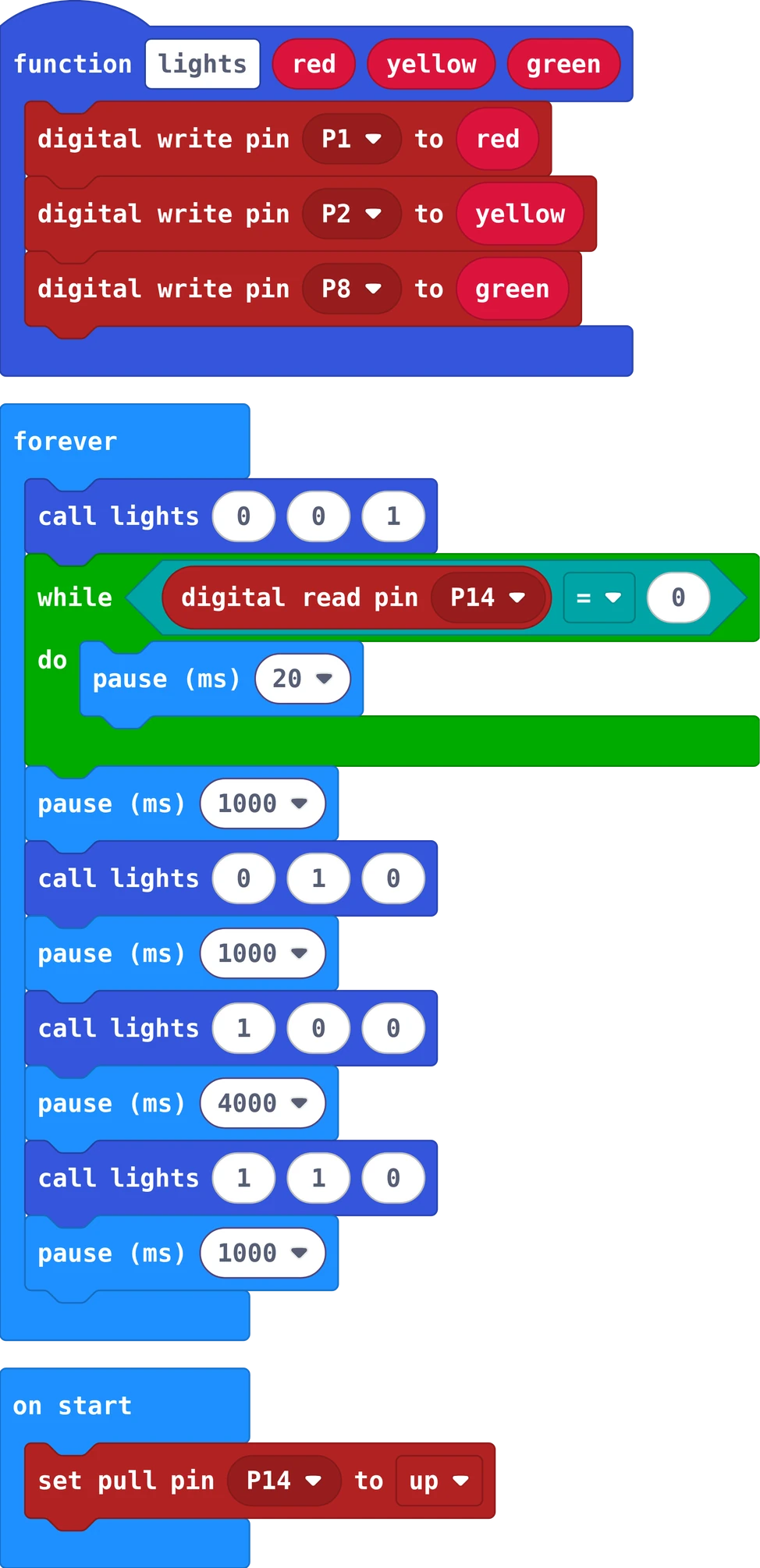
def lights(red: number, yellow: number, green: number):
    pins.digital_write_pin(DigitalPin.P1, red)
    pins.digital_write_pin(DigitalPin.P2, yellow)
    pins.digital_write_pin(DigitalPin.P8, green)
pins.set_pull(DigitalPin.P14, PinPullMode.PULL_UP)

def on_forever():
    lights(0, 0, 1)
    while pins.digital_read_pin(DigitalPin.P14) == 1:
        basic.pause(20)
    basic.pause(1000)
    lights(0, 1, 0)
    basic.pause(1000)
    lights(1, 0, 0)
    basic.pause(4000)
    lights(1, 1, 0)
    basic.pause(1000)
basic.forever(on_forever)

In MakeCode, switch from Blocks to Python at the top of the editor to type it yourself.

const int redLedPin = 2;
const int yellowLedPin = 3;
const int greenLedPin = 4;
const int buttonPin = 7;

void setLights(bool red, bool yellow, bool green) {
  digitalWrite(redLedPin, red);
  digitalWrite(yellowLedPin, yellow);
  digitalWrite(greenLedPin, green);
}

void setup() {
  pinMode(redLedPin, OUTPUT);
  pinMode(yellowLedPin, OUTPUT);
  pinMode(greenLedPin, OUTPUT);
  pinMode(buttonPin, INPUT_PULLUP);   // HIGH when not pressed, LOW when pressed: no extra resistor needed
}

void loop() {
  setLights(false, false, true);      // green for the cars
  while (digitalRead(buttonPin) == HIGH) {
    delay(20);                        // wait for the button
  }
  delay(1000);                        // the cars get a moment
  setLights(false, true, false);      // yellow
  delay(1000);
  setLights(true, false, false);      // red: pedestrians cross
  delay(4000);
  setLights(true, true, false);       // red and yellow
  delay(1000);
}

The cars keep green until someone presses the button. Pull up makes the pin read 1 while the button is not pressed; pressing it connects the pin to GND, and it reads 0. Keep the story 3 function.

Your turn: make the pedestrians wait at least 10 seconds between two red phases.

Really stuck? Try first: you learn the most by building it yourself. If it still does not work, your teacher can give you a code for a ready-made program of your story.

Type the code in the lock at the top right of the page.

7Challenges

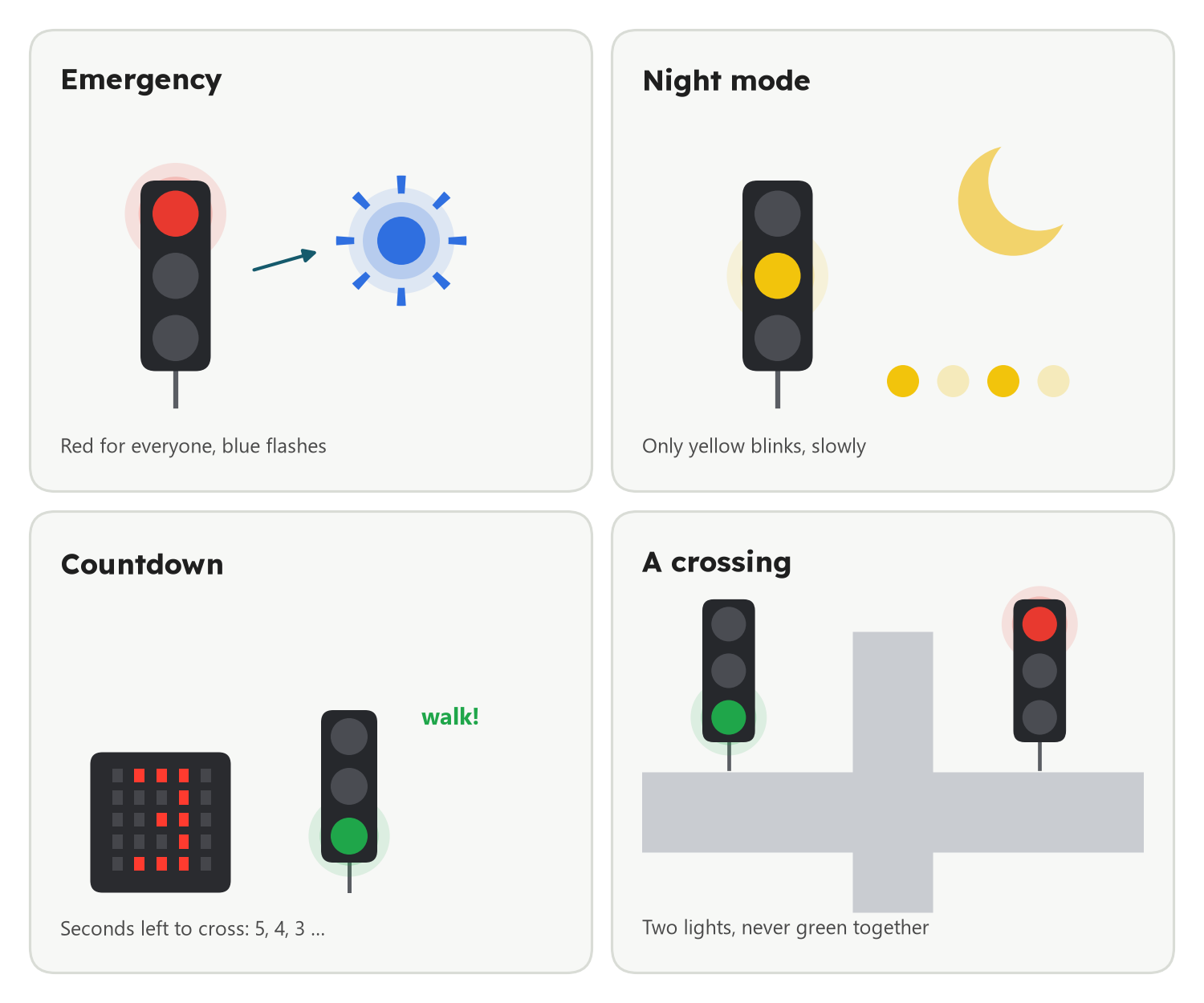
Four challenges: an emergency with a blue flashing light, night mode with only yellow, a countdown for pedestrians, and a crossing with two traffic lights

Challenges

  • Emergency: a second button stops all cars: red, then the blue LED flashes, then back to normal.
  • Night mode: the yellow light blinks slowly, the others stay off.
  • Countdown: show how many seconds the pedestrians have left, on the Micro:bit's LEDs or in the Arduino's Serial Monitor.

Explore further

  • A crossing: two traffic lights that never show green at the same time (6 LEDs).
  • Without waiting: on the Arduino, use millis() instead of delay(), so the button works at any moment.
  • Sound: a ticking sound for blind pedestrians while they may cross.

Example solution for Emergency, for your board. Try first; if you get stuck, or want to study it at home, ask your teacher for the code.

Type the code in the lock at the top right of the page.

8Check what you learned

Before you leave. Your teacher picks some of these for you: answer out loud, draw on paper, or work with the person next to you. Some cards change with your story: now .

Answer it

Everyone, then your story

  1. An LED has a long leg and a short leg. Which one goes towards the pin? What happens if the LED is the other way round?
  2. Why does every LED need a 220 Ω resistor?
  3. Which holes of the breadboard are connected inside? Show two of them on your own breadboard.
  4. What does pinMode(redLedPin, OUTPUT) in setup do?
  5. The LED blinks once every second. Which numbers do you change to make it blink twice as fast?
  6. Why does the program switch blue off when red goes on? Could you leave that out?
  7. A real traffic light shows red and yellow together before green. Why is that step there?
  8. What does the function lightssetLights save you? How many lines would the program have without it?
  9. The button pin has pull up. What does the program read when the button is not pressed, and when it is pressed?
  10. Why does the button sit across the middle gap of the breadboard?

Predict, then try

Say what will happen first, then try it in the lab or on your board

  • Make the first pause 100 and keep the second at 500. What will the LED look like?
  • Delete the step that switches blue off. What will the two LEDs do?
  • Make all four pauses 100. Could a car driver still use this traffic light?
  • You press the button while the light is already red. What happens, and why?

Draw it

For

Draw the flow chart of your program on paper: a box for each step, a diamond for each question, arrows for the order. Then point at each box and tell your teacher what the lights do at that moment.

How to draw a flow chart

Flow charts

A flow chart shows what a program does, one step after the other. It works for every board and every language: the blocks change, the idea stays.

  • Rounded box: where it starts
  • Box: one thing to do
  • Diamond: a question with two answers, yes and no
  • Arrow: what comes next; an arrow back up repeats

One box for each step, a diamond for each question, and follow the arrows with your finger.

More: how to draw your own

Draw on paper with a pencil. Read your program from the top and draw one box for each block or line. "Forever" and "loop" are an arrow back up. "If", "while" and "on button pressed" are questions: a diamond with yes and no. Then point at the boxes with your finger and say out loud what the board does. If your finger gets stuck, the program would get stuck too.

I can …

Tick what is true for you today

Find the bug

A mistake we often see in class. What does the board do? Why? How do you fix it?

"The police lights should take turns, but red looks like it is always on and blue never lights."

The MakeCode blocks of this program
The same in Python
def on_forever():
    pins.digital_write_pin(DigitalPin.P1, 1)
    pins.digital_write_pin(DigitalPin.P13, 0)
    basic.pause(300)
    pins.digital_write_pin(DigitalPin.P1, 0)
    pins.digital_write_pin(DigitalPin.P13, 1)
basic.forever(on_forever)

"Red blinks fine, but blue only glows very weakly."

const int redLedPin = 2;
const int blueLedPin = 5;

void setup() {
  pinMode(redLedPin, OUTPUT);
}

void loop() {
  digitalWrite(redLedPin, HIGH);
  digitalWrite(blueLedPin, LOW);
  delay(300);
  digitalWrite(redLedPin, LOW);
  digitalWrite(blueLedPin, HIGH);
  delay(300);
}

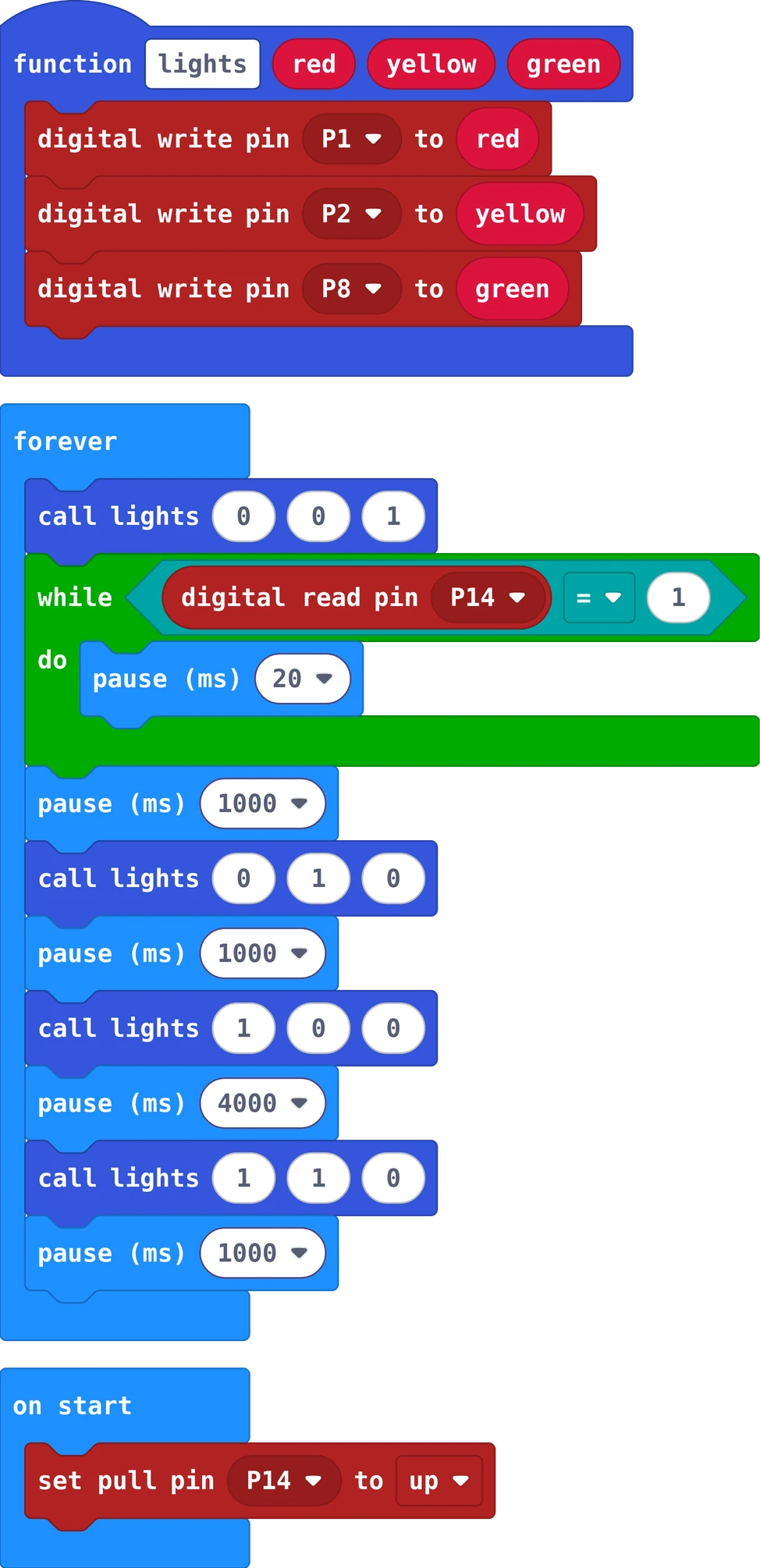
"The light never waits for the button. And when I hold the button down, it stays green."

The MakeCode blocks of this program
The same in Python
def lights(red: number, yellow: number, green: number):
    pins.digital_write_pin(DigitalPin.P1, red)
    pins.digital_write_pin(DigitalPin.P2, yellow)
    pins.digital_write_pin(DigitalPin.P8, green)
pins.set_pull(DigitalPin.P14, PinPullMode.PULL_UP)

def on_forever():
    lights(0, 0, 1)
    while pins.digital_read_pin(DigitalPin.P14) == 0:
        basic.pause(20)
    basic.pause(1000)
    lights(0, 1, 0)
    basic.pause(1000)
    lights(1, 0, 0)
    basic.pause(4000)
    lights(1, 1, 0)
    basic.pause(1000)
basic.forever(on_forever)

"Sometimes the light changes by itself, without anybody pressing the button. When I touch the wires, it happens more often."

void setup() {
  pinMode(redLedPin, OUTPUT);
  pinMode(yellowLedPin, OUTPUT);
  pinMode(greenLedPin, OUTPUT);
  pinMode(buttonPin, INPUT);
}

void loop() {
  setLights(false, false, true);
  while (digitalRead(buttonPin) == HIGH) {
    delay(20);
  }
  delay(1000);
  // ... the rest is the same as story 4
}

Ask one question

Each of you asks one question about today

Ask your teacher or the class one question about today. Anything counts: a part, a block, a word on this page, something that went wrong, or where this is used in real life. There are no wrong questions, only questions nobody asked.

Start with: Why does …?   What happens if …?   How does a real … do it?   What does … mean?   Could I use this to …?

Answers for the teacher. The answers to the cards above, and a model flow chart for each story.

Type the code in the lock at the top right of the page.

Poster to print (PDF)

Poster to print (PDF)